Translating the App
Last updated: June 2026
This chapter describes how to export, translate, and reimport content for multilingual coaching programs.
1. Overview
The translation workflow follows three steps:
- Export the content as a CSV file
- Translate the content (in Excel or any CSV editor)
- Reimport the translated file
2. Prepare the Coaching
Before exporting, the coaching must be deactivated.
Select the coaching in the list and deactivate it using the toggle or status control.

3. Open Internationalization
With the coaching selected, click the Internationalization button.

This opens the export and import panel. Three export types are available:
| Export | Content |
|---|---|
| Messages & Dialogs | All Micro Dialog messages and answer options — the complete chat content |
| Coaching Variables | User-created variables (not all system variables) |
| Surveys & Feedbacks | Survey and feedback content |
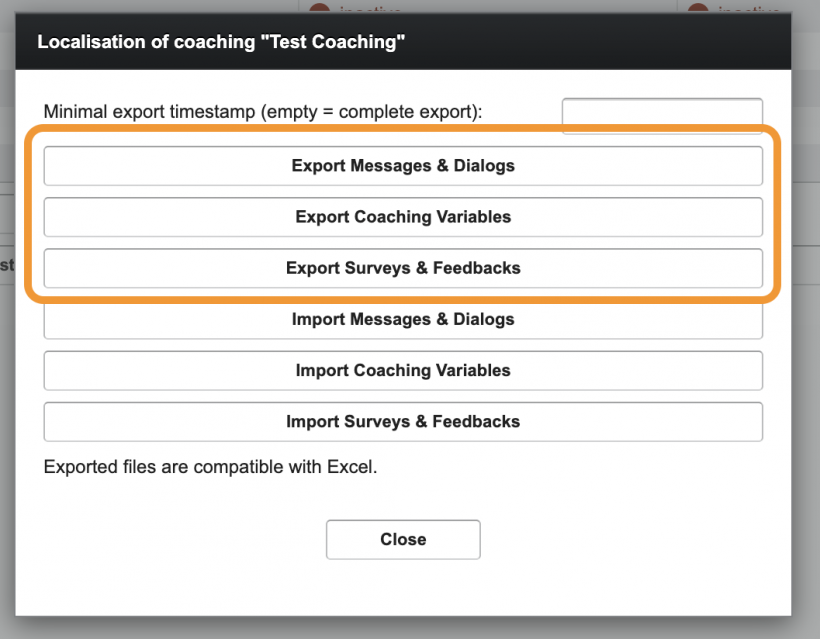
For most translation projects, Messages and Dialogs is the relevant export.
If no timestamp is specified, the full content is exported.
4. Export the Content
Click Export Messages and Dialogs (or the relevant export type).
A CSV file is downloaded.
5. Translate the File
Open the CSV file in Excel or a similar spreadsheet application.

The file is structured as follows:
| Column | Content |
|---|---|
| Identifier | Internal ID - do not edit |
| Description | Bubble description, including Micro Dialog name and conditions - do not edit |
| [Language columns] | One column per language (e.g. DE-CH, EN-GB) |
| [Answer Options columns] | One answer column per language |
Important rules when editing the file:
- Do not edit the Identifier or the Description column. It is required for reimport. Hide columns if needed to prevent accidental changes.
- Do not add or delete rows.
- Do not add or delete columns.
- If bubbles need to be removed entirely, do this in the coaching itself — either before the export or after the reimport.
Translation tips:
- Each language has its own column. Fill in the missing translations column by column.
- Excel's built-in translation function can be used to speed up the process.
- The description column helps identify which Micro Dialog a row belongs to and what conditions apply.
6. Save as CSV
When translation is complete, save the file.
If you worked in Excel (.xlsx), convert it back to CSV before reimporting. The reimport requires a CSV file.
For providing the current string export to several people at once, it is also possible to upload the .csv or the .xsl file as a Google Sheets and share the link accordingly. After you are done with your localization and your adjustments in the stringexport, make sure to download it first and then convert it back to .csv with Excel.
7. Reimport the File
Go back to the coaching, click Internationalization, and click Import Messages and Dialogs.
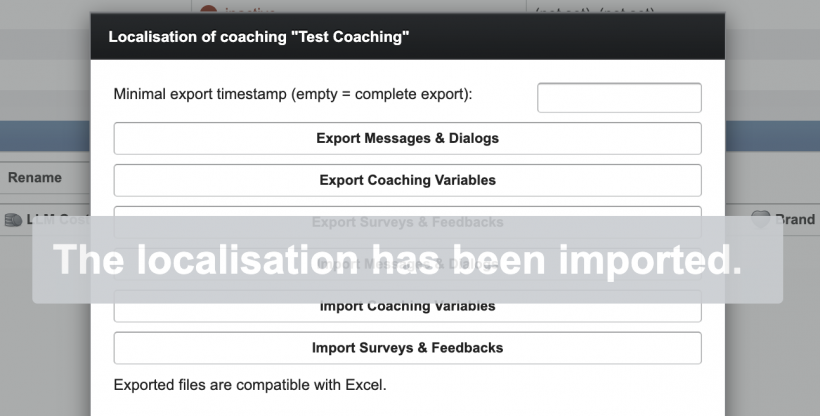
Select the translated CSV file. Once the upload is complete, a confirmation message is shown and the translations are applied.