Rules
Last updated: June 2026
In system, the term “Rule” is used in three different contexts:
- Global Execution Rules
(trigger Micro Dialogs at program level) - Dialogue-Level Rules
(control flow inside Micro Dialogs) - Rule Types / Operators
(define how variables are evaluated or created)
These contexts serve different purposes and should not be confused.
1 Global Execution Rules
(Program-Level Flow Control)
Global Execution Rules determine when Micro Dialogs are triggered.
They are configured in the Rules tab of a Coaching and operate independently from the internal logic of Micro Dialogs.
Global rules can:
- start Micro Dialogs
- update variables
- react to user actions
- schedule time-based interactions
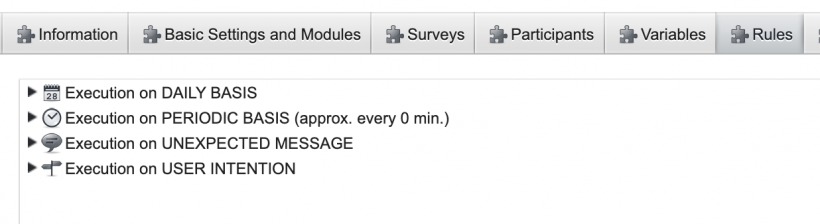
1.1 Execution Types
The platform provides four execution types:
- Execution on DAILY BASIS
- Execution on PERIODIC BASIS
- Execution on UNEXPECTED MESSAGE
- Execution on USER INTENTION
Each execution type defines when its rule tree is evaluated.
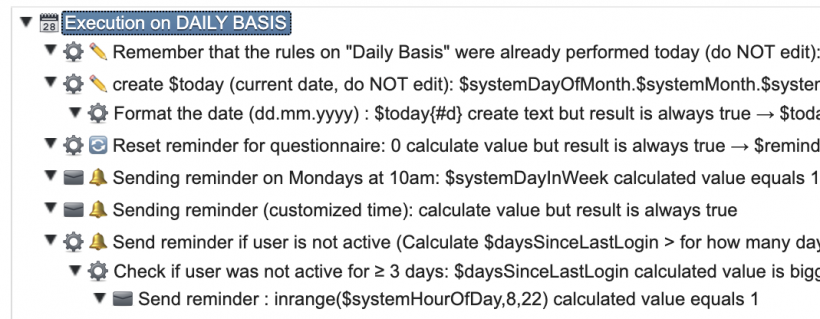
1.1.1 Execution on DAILY BASIS
Rules in this section are evaluated once per day at 00:00.
Important characteristics:
- The system evaluates all rules at 00:00.
- Variables are evaluated in their state at 00:00.
- Scheduled Micro Dialogs are sent later in the day.
- Changes during the day do not affect already scheduled actions.
- Rules are processed top to bottom.
Typical use cases:
- Sending a daily message at a fixed time
- Monthly reminders
- Daily variable updates (e.g. refreshing
$today)
Avoid:
- Triggering actions on the first day of registration before 00:00.
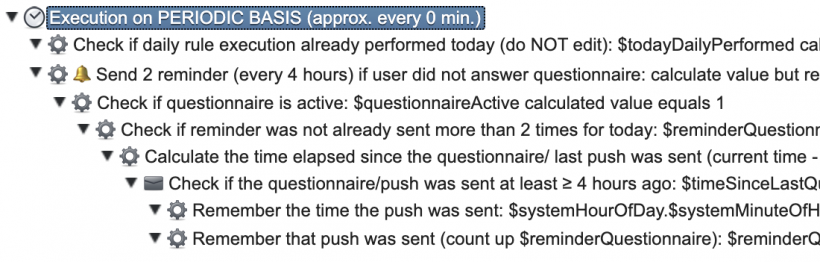
1.1.2 Execution on PERIODIC BASIS
These rules run approximately every few seconds.
They are resource-intensive and should be used carefully.
Typical use cases:
- Triggering a Micro Dialog on the first day at a user-defined time
- Reacting to frequently changing conditions
- Immediate feedback after measurement completion
Avoid:
- Predictable, fixed-time events (use DAILY instead)
1.1.3 Execution on UNEXPECTED MESSAGE
This execution type is used in systems where users can send free text without an open question (e.g., SMS, WhatsApp integrations).
If a message arrives without an active question:
- the rule tree in this section is evaluated
- appropriate Micro Dialogs can be triggered
Example use case:
Trigger a help dialogue if the user writes "help".
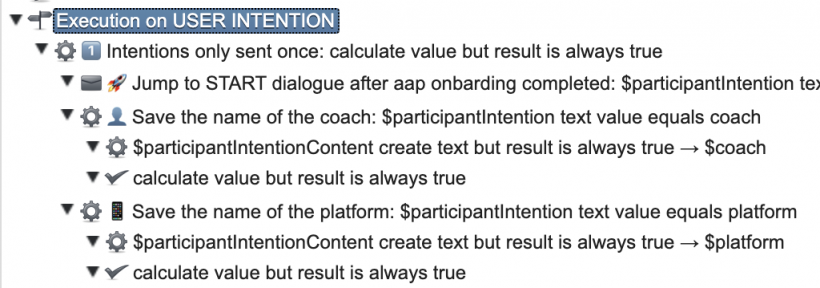
1.1.4 Execution on USER INTENTION
User Intentions are triggered by defined actions inside the app.
When a user performs an action:
$participantIntentionstores the name$participantIntentionContentstores optional content
Example:
After onboarding completion:
$participantIntention= "go"- Start START-Dialogue
1.2 Triggering Micro Dialogs
Micro Dialogs can be triggered via:
- Time-based conditions
- Event-based conditions
- Variable-based conditions
- Combinations of the above
Rules can be reorganized via drag & drop.
1.2.1 Example: Send on Defined Weekday

$systemDayInWeek calculated value equals 1
Action: Send Micro Dialog every Monday.
1.2.2 Example: Send Reminder if User Is Inactive
Rule tree (Execution on DAILY BASIS):
- Calculate inactivity:
$participantLastLoginDate calculate date difference in days and always true $today → Store result in $daysSinceLastLogin
- Condition:
$daysSinceLastLogin calculated value is bigger or equal than 3
- Send at 8 AM.
Additionally: Add a Decision Point at the top of the Micro Dialog:
$participantLastLoginDate calculate date difference in days and true if zero $today → Stop complete Micro Dialog if TRUE
This prevents sending reminders if the user logged in after 00:00.
2 Dialogue-Level Rules
(Inside Micro Dialogs)
Dialogue-Level Rules operate within Micro Dialogs.
They are used in:
- Message Conditions
- Decision Points (chapter 5.4)
These rules do NOT trigger dialogues globally.
They only control flow inside the dialogue.
2.1 Message Conditions
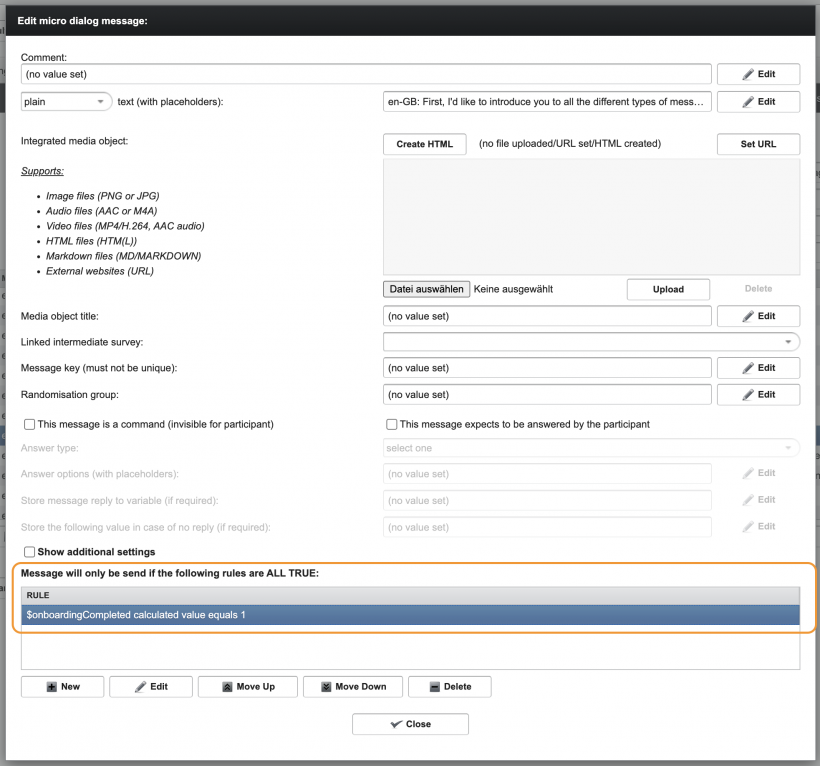
Message Conditions determine whether a message is sent.
A message is only sent if ALL rules evaluate to TRUE.
Typical use cases:
- Show message only if score > 5
- Skip message if variable equals "completed"
- Personalised branching inside a dialogue
Example:
$onboardingCompleted calculated value equals 1 (meaning this message will only displayed if the onboarding was completed by user)
2.2 Decision Point Rules
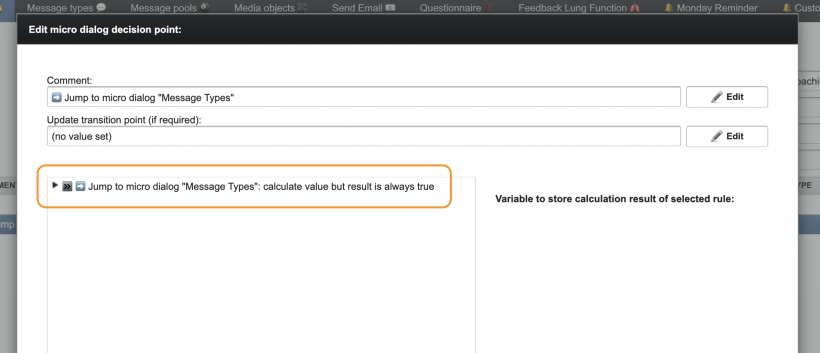
Decision Points use rules to:
- branch to different messages
- jump to other Micro Dialogs
- cascade into reusable sub-dialogues
- create new variables
Decision Points may use:
- AND logic (child rules)
- OR logic (same hierarchy level)
They are processed top to bottom.
You can look for more information on decision points in chapter 5.4 from Micro Dialogs.
3 Rule Types (Operator Reference)
Rule Types define how variables are evaluated or created.
They are used in:
- Global Execution Rules
- Message Conditions
- Decision Points
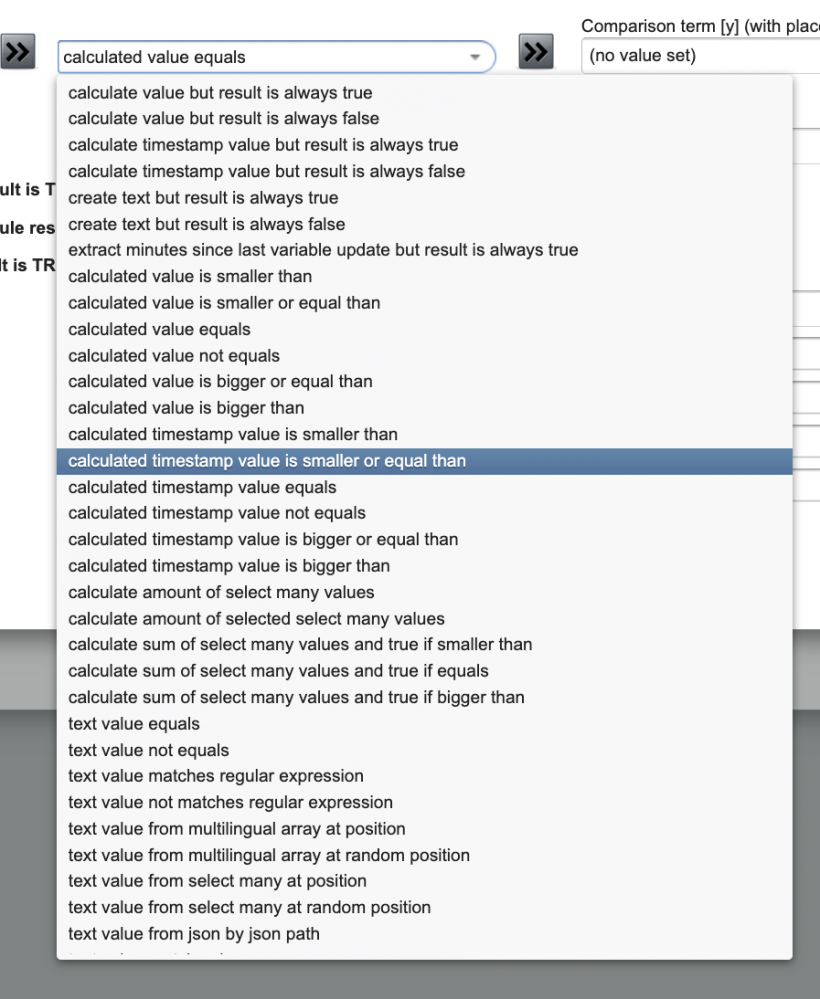
This image does not show all rule types.
3.1 Important General Rules
3.1.1 Only Predefined Variables Can Be Used
When defining rules, you can only use variables that already exist in the system.
If a variable is unknown:
- the rule will not be accepted
- the system will show an error
New variables must be created in the Variables section before they can be used in rules.
3.2 Text Operators
Text operators evaluate string values.
3.2.1 text value (not) equals
Checks for an exact match.
✔ Case-insensitive
✔ Whitespace is trimmed automatically
✔ Works with select-one and select-many responses
Example: $userInput text value equals "Confirmed"

This rule is true only if the value matches exactly.
Special Case: Select Many Responses
Select-many answers are stored as comma-separated numeric placeholders.
Example:
- Apple: 1
- Orange: 2
- Banana: 3
User selects Apple + Banana → stored as: 1,,3
Example rule: $fruitSelection text value equals 1,,3
True only if:
- Apple AND Banana selected
- Orange NOT selected
3.2.2 text value (not) matches key
Used to define OR-conditions.
Checks whether the variable contains one or more defined keys.
Example: $fruitSelection text value matches key 1,3
True if:
- Apple OR Banana was selected
3.2.3 text value (not) matches regular expression
Allows pattern matching using regular expressions.
⚠️ The match is anchored — the pattern must match the entire value. To match a substring, use
.*pattern.*.
Example: $participantLanguage text value matches regular expression fr.*
Matches:
- frCH
- frFR
Example: $participantLanguage text value matches regular expression .*CH
Matches all Swiss language codes.
Use this when:
- checking prefixes
- checking suffixes
- searching substrings
3.2.4 text value from select many at position
Extracts a value from a pipe-separated variable based on a position stored in another variable.
Typical use case: mapping numeric selections to readable labels.
Example setup: $exerciseChoice = 1 $exerciseNameType = Breathing Exercise 😮💨|Meditation 🧘
Rule: $exerciseNameType text value from select many at position $exerciseChoice Store result to variable: $exerciseName
Result: $exerciseName = Breathing Exercise 😮💨
3.2.5 text value from multilingual array at position
Same functionality as above, but used for multilingual coaching programs.
The source variable must be configured as a multilingual array.
The position must match the selection variable.
3.3 Numeric / Calculation Operators
These operators evaluate numeric values.
3.3.1 calculated value (not) equals
Checks for exact numeric equality.
Example: $participantScore calculated value equals 10
True only if the value is exactly 10.
3.3.2 calculated value is bigger (or equal) than
Checks lower bounds.
Example: $participantAge calculated value is bigger or equal than 18
3.3.3 calculated value is smaller (or equal) than
Checks upper bounds.
Example: $participantScore calculated value is smaller or equal than 100
3.3.4 Supported Math Operations
The following mathematical operations are available in calculated rules:
Standard operators: +, -, *, /, %, ^ (exponent), parentheses.
Standard functions: abs, ceil, floor, round, min, max, sum, avg, sqrt, sin, cos, tan, ln, log, exp, random. Constants pi and e.
Additional platform functions:
| Function | Description |
|---|---|
first(v1, v2, …) |
Position of the largest value (1-based) |
second(v1, v2, …) |
Position of the second largest value |
third(v1, v2, …) |
Position of the third largest value |
position(k, v1, v2, …) |
Returns the value at position k |
digit(k, n) |
Digit at position k of integer n, from right |
inrange(v, min, max) |
Returns 1 if v is between min and max, else 0 |
Example: (2^3-1)*sin(pi/4) → ≈ 2.475
⚠️ Missing or non-numeric variables are treated as
0in calculations. Watch for floating-point results like1.6000000000000014— useround()where whole numbers are expected.
3.4 Operators for Creating Variables
These operators calculate or create values but always evaluate as TRUE (or FALSE in the _ALWAYS_FALSE variants, useful when you want to store a value without triggering any branch).
They are mainly used to store derived values.
3.4.1 calculate value but result is always true
Performs mathematical calculations and stores the result.
Supported operations: see section 3.3.4.
Example: (score1+score1+ score1+score2)/2 calculate value but result is always true Store result to variable: $scoreAverage
3.4.2 create text but result is always true
Concatenates text and variable values into a new string.
Example: $measurementWeek, $bloodPressureAverage create text but result is always true Store result to variable: $progressMessage
You can also use format modifiers inside text rules to control how variable values appear:
| Modifier | Effect |
|---|---|
$var{#d} |
Date in fixed system format (dd.mm.yyyy) |
$var{#D} |
Date localized to the participant's language |
$var{#t} |
Time in fixed system format (hh:mm) |
$var{#T} |
Time localized |
$var{%.2f} |
Numeric value with 2 decimal places |
Example: Hello $nickname, your BMI is $bmi{%.1f}.
Result: Hello Tester, your BMI is 22.4.
3.5 Date and Time Operators
Date operators allow:
- calculating differences
- checking thresholds
- creating future dates
3.5.1 Formatting Date Variables
To format a date in user-facing messages: $dateVariable{#d}
Without formatting → raw system format
With formatting → dd.mm.yyyy
3.5.2 Formatting Time Variables
Time values are stored as decimals (hh.mm).
To display as hh:mm: $timeVariable{#t}
3.5.3 date difference value equals
Checks whether the difference between two dates equals a specific number of days.
Example: $lastLoginDate date difference value equals 30
3.5.4 calculate date difference in days / months / years and true if zero
Checks whether two dates are equal in the specified unit.
Example: $currentDate calculate date difference in days and true if zero $subscriptionEndDate
⚠️ Month differences use an average of 30.4375 days and are not calendar-exact. For precise calendar arithmetic (e.g. respecting leap years or exact month lengths), use a JavaScript rule.
3.5.5 calculate date difference in days / months / years but result is always true
Calculates a date difference and stores it in a variable.
The left date is subtracted from the right date.
Example: $lastLoginDate calculate date difference in days and always true $currentDate Store result to variable: $lastLoginDaysPassed
3.5.6 calculate new date by adding x days / months / years
Creates a future date.
Example: $registrationDate calculate new date by adding x years 1 Store result to variable: $evaluationDate
3.6 Advanced Operators
3.6.1 text value from json by json path
Extracts a value from a JSON object using a JSON path.
Use this when:
- integrating external APIs
- parsing structured system responses
- reading nested values
Example: $apiResponse text value from json by json path $.data.score Store result to variable: $extractedScore
Note: enter the path without the leading
$— the system adds it automatically. For example, use.data.scoreinstead of$.data.score.
3.6.2 extract minutes since last variable update
Returns how many minutes have passed since a variable was last written.
Useful for time-sensitive reactions, e.g. detecting whether a measurement was taken recently.
Example: $lastHeartrateReading extract minutes since last variable update Store result to variable: $minutesSinceReading
Returns -1 if the variable does not exist or has no timestamp.
3.6.3 JavaScript Rule
For complex logic that cannot be expressed with standard operators, a JavaScript rule can be used. It runs a small script and stores the results directly as participant variables.
Typical use cases:
- Multi-step calculations
- Calling external APIs
- Working with dates that require calendar-exact arithmetic
- Processing structured data from sensors or integrations
The result of the script is always stored as participant variables — there is no separate "store to variable" field needed. The rule always evaluates as TRUE.
For full details on JavaScript rules, see the separate Javascrip Snippet documentation.
3.7 Choosing the Right Operator
Use:
- equals → exact comparison
- matches key → OR logic
- regular expression → pattern matching
- calculated value operators → numeric thresholds
- create value operators → compute and store variables
- date operators → time-based automation
- json operator → external data extraction
- minutes since last update → recency checks
- JavaScript rule → complex logic, API calls, calendar-exact date math
When in doubt: prefer the simplest operator that solves the problem.