Media Library
Last updated: May 2026
1. What is the Media Library?
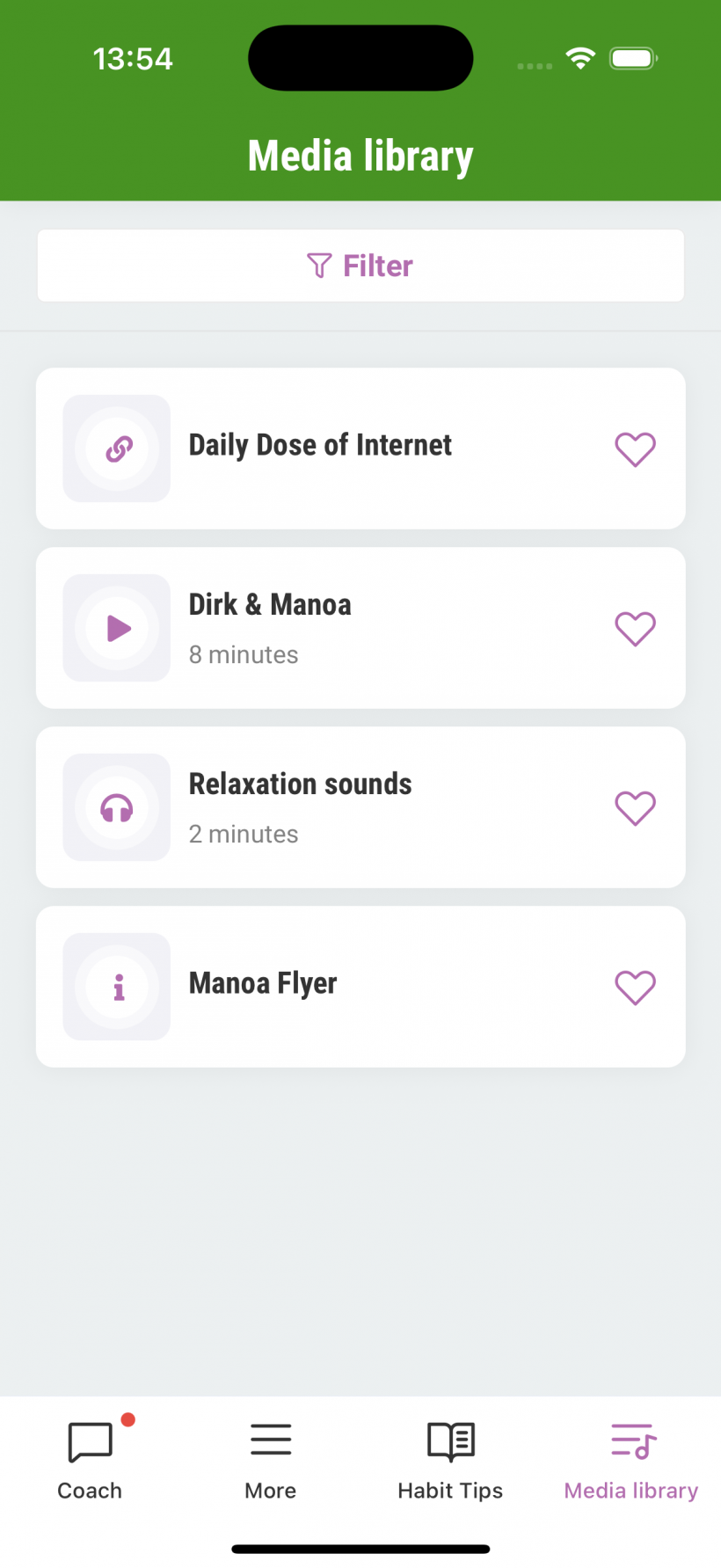
The Media Library is a user-facing collection of media items within the app. It allows media such as audio, videos, links, and info cards to be provided through the chat and made available to users beyond the immediate conversation context.
Media items can be:
- displayed directly in the chat,
- stored persistently in the user's media library,
- or added in the background and made visible at a later point in time.
Unlike temporary chat messages, media items in the Media Library are designed to be reusable, persistent, and user-accessible. Once added, they can be revisited by the user at any time via the media library section of the app.
2. What the Media Library is Not
The Media Library in the app is not a Content Management System (CMS).
While the platform CoachStudio Designer includes a CMS where media files can be uploaded and managed ("Media resources"), media from the CMS cannot currently be used directly in the Media Library. CMS media is only supported in specific contexts, such as surveys, where it is embedded via dedicated commands.
This distinction is important:
- The CMS is editor- and content-focused.
- The Media Library is user- and experience-focused.
Media items in the Media Library are explicitly created and controlled via backend commands and are tied to the user's in-app experience, not to general content storage.
3. When is the Media Library Used?
The Media Library is used whenever media should:
- be shown as a structured object in the chat (instead of plain text),
- remain available to the user after the chat interaction,
- or be delivered independently of a specific chat message.
Typical use cases include:
- providing audio or video content during a coaching flow,
- collecting relevant resources for later reference,
- unlocking content progressively based on time or user progress.
4. How the Media Library is Used
4.1 Media from a User Perspective
From a user's point of view, media items appear as structured elements within the chat. Depending on how they are delivered, these items may also be stored in the media library section of the app, where they remain accessible beyond the current conversation.
Media items in the Media Library are not tied to a single chat message. Instead, they represent persistent content that users can return to at any time.
4.2 Persistency and Visibility
A key concept of the Media Library is the separation between adding media and making media visible.
Media items can be:
- added and displayed immediately,
- added in the background without user interaction,
- or added first and unlocked later.
This allows media delivery to be decoupled from the chat flow. Content can be prepared in advance and made available only when it is relevant for the user, for example based on progress, timing, or contextual conditions.
4.3 Core Media Library Actions
The Media Library supports a small set of core actions. These actions define what happens from the user's perspective, independent of the technical command syntax.
4.3.1 Show Media
- The media item is displayed directly in the chat.
- At the same time, it is added to the user's media library.
- The media is immediately visible and accessible to the user.
Typical use case: Presenting audio, video, or informational content during an active chat flow.
4.3.2 Add Media (Background)
- The media item is added to the media library without being shown in the chat.
- The item can optionally trigger a user notification.
- The media can be added as hidden and remain invisible until it is explicitly unlocked.
Typical use case: Preparing content ahead of time or adding resources without interrupting the chat experience.
4.3.3 Unlock Media
- A previously added media item becomes visible in the media library.
- Applies to items that were added in the background and are locked.
- The media does not need to be re-added or re-uploaded.
Typical use case: Progressive content release or making content available after a specific event, time, or milestone.
4.3.4 Reference Existing Media
- An existing media item from the media library is displayed in the chat.
- The media is not duplicated or reloaded.
- The reference points to a previously stored media item.
Typical use case: Reusing existing content and ensuring consistency without redundant media delivery.
5. Enabling the Media Library in the App
Before media items can be visible to users, the Media Library must be activated in the CoachStudio Designer.
Steps
- Navigate to the Screens tab in the CoachStudio Designer.
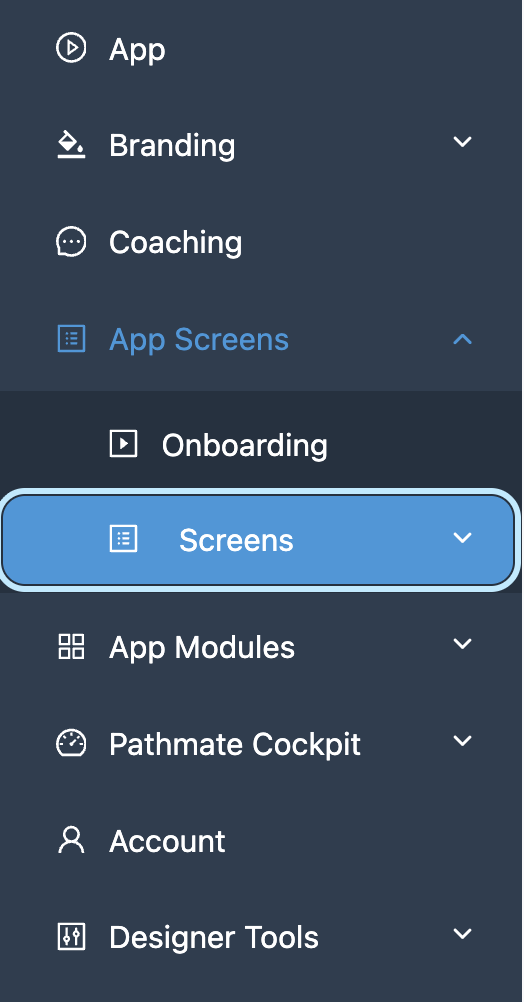
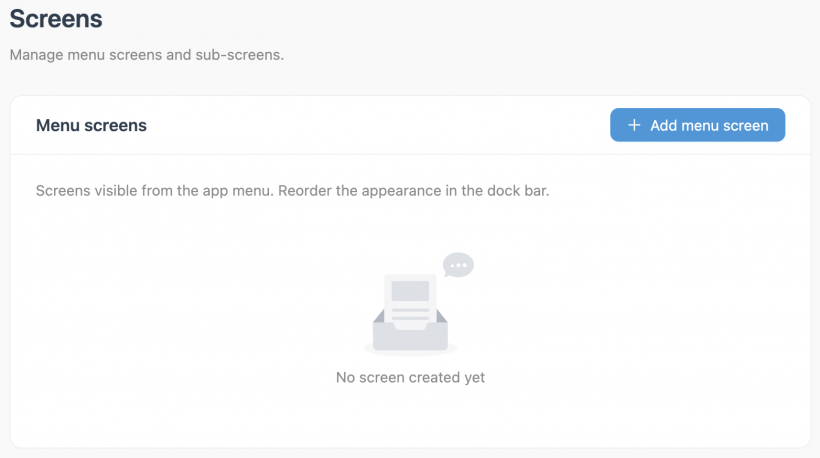
- Add a new Screen in the section "Menu Screens".
- Set the Screen ID to:
media-library
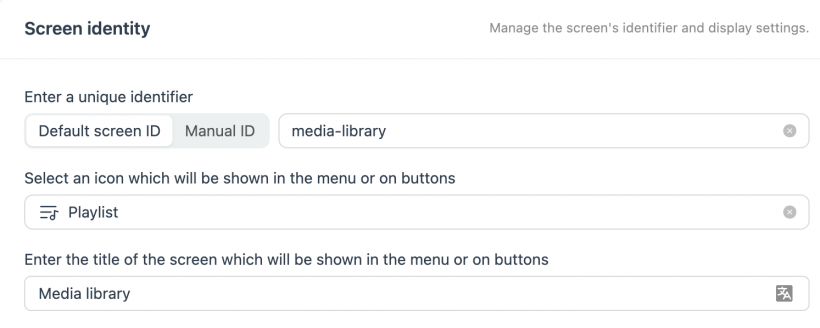
- The title can be chosen freely.
- The icon can be chosen freely.
- If the screen is set to appear in the menu, it will be visible in the app's navigation bar.
Once the screen is configured, the Media Library becomes accessible to users. Now you can also preload the media library with items from "Media Resources", check chapter 7.3.1 on this page.
6. What is a Media Library Item?
A media library item represents a single, self-contained piece of media that can be delivered to the user and stored in the media library. Each item is defined once and can be reused across different chat flows and contexts.
A media library item combines:
- a unique identifier,
- a user-facing title,
- a specific media type,
- and a media source (file or URL).
Once created, a media library item can be shown in the chat, stored persistently in the media library, unlocked at a later point in time, or referenced multiple times without duplication.
6.1 Media Item Identity
Each media library item is identified by a unique ID. The ID is used to reference the item across all media library commands and must be unique within the media library. An item must exist in the media library before it can be unlocked or referenced.
The ID serves as the technical anchor for all interactions with a media library item, independent of how or when the item is shown to the user.
The ID can either be a number
"id": 22
or if the id should contain other characters than numbers
"id": "22eaasdf-sdaf"
"id": "i-am-a-very-unique-id"
6.2 Supported Media Types
The Media Library supports different media types. Each type defines how the content is presented to the user.
6.2.1 Video
- Video content provided as a media file or URL (e.g. Vimeo).
- Displayed as a playable video element within the app.
6.2.2 Audio
- Audio content provided as a media file.
- Displayed as an audio player within the app.
6.2.3 Link
- An external URL.
- Displayed as a clickable link element.
6.2.4 Info
- Informational content such as HTML or image-based content.
- Displayed as an info card within the app.
6.3 Optional Properties
In addition to the required properties, media library items can include optional attributes that influence organization, visibility, and presentation.
6.3.1 Organization and Filtering
- Tags — Used to categorize media items and enable filtering within the media library. Tags can be localized to display user-friendly labels.
6.3.2 Visibility and User Experience
- Unlocked — Controls whether a media item is visible in the media library. By default unlocked.
- Notification — Determines whether the user is notified when a media item becomes available. By default, it displays a generic alert. A custom alert text can also be used.
6.3.3 Presentation
- Thumbnail — A preview image used to visually represent the media item.
- Duration — The length of the media content, if applicable.
- chatCoverBackground — An image shown as the cover background when the item is displayed in the chat.
- audioCoverBackground — An image shown as the cover background in the full-screen audio player view.
- cover — A single fallback image used as cover background in both the chat and full-screen contexts, if
chatCoverBackgroundandaudioCoverBackgroundare not set individually.
6.4 Using Media Resources Files from the CoachStudio Designer in the Media Library
Media library items can make use of files that were uploaded via Media Resources in the CoachStudio Designer.
Steps
- Upload the media file (image, audio or video) via Media Resources in the CoachStudio Designer.
- Once uploaded, the file is assigned a unique ID.
- Use this ID as the value e.g. for
file(and, where applicable,thumbnail,chatCoverBackground, oraudioCoverBackground) in a media library command such asadd-media-library-itemsorshow-media-library-items.
For example, in the item examples shown in chapter 7.3, values such as "file": "69e8c46888e4b700d5b6405e" or "thumbnail": "6a046283a5cb2f74e3a3b046" refer to files previously uploaded via Media Resources.
This works both when the command is used within a coaching flow and when items are preloaded via the CoachStudio Designer (see 7.3) — in both cases, the same Media Resources ID is simply used as the property value.
7. Media Library Commands
This section describes the commands used to create, manage, and display media library items. All commands operate on media library items identified by their unique ID.
Where are these commands used?
Media library commands are entered directly in the CoachStudio Coaching Editor, as the content of a regular chat message within a coaching flow — the message content itself is interpreted as a command (e.g. add-media-library-items {...}) rather than being shown to the user as text.
This is different from the CMS/survey use case mentioned in chapter 2: there, images from Media Resources are embedded directly via dedicated commands within Questionnaires, independent of the Media Library.
7.1 add-media-library
Adds a new media item to the media library without displaying it in the chat.
The media item can be added as visible or hidden and may optionally trigger a user notification.
Purpose
- Add media items in the background.
- Prepare content for later use.
- Control when media becomes visible to the user.
Example
add-media-library {
  "id": 22,
  "type": "link",
  "file": "https://www.youtube.com/watch?v=gkI5MMsjbN4",
  "title": "Traumjob Influencer",
  "tags": ["link", "information"],
  "unlocked": true
}
add-media-library {
"id": 1,
"type": "link",
"file": "https://www.youtube.com/watch?v=txvamXMEbVY",
"title": "Kaer Mohren",
"tags": ["link", "witcher"],
"notification": "You unlocked a soundtrack, check your media library!"
}add-media-library {
"id": "e7",
"type": "info",
"title": "7 Tipps zum Entspannen",
"tags": ["info", "relax"],
"unlocked": false
}Good to Know
- The media item is not shown in the chat.
- The item must be unlocked before it becomes visible to the user.
- Character strings must be enclosed in double quotation marks.
- Numeric IDs are not enclosed in quotation marks.
7.2 show-media-library
Displays a media item in the chat and adds it to the media library at the same time.
Purpose
- Present media directly during a chat flow.
- Ensure the media remains available in the user's media library.
Example
show-media-library {
  "id": 3305,
  "type": "audio",
  "title": "Vanessa Story",
  "tags": ["audio"],
  "duration": 109
}
show-media-library {
"id": "sh52",
"type": "video",
"title": "Sicherheitshinweise",
"tags": ["video", "safety"],
"duration": 448
}Good to Know
- The same structure and rules apply as for
add-media-library. - The media item becomes immediately visible to the user.
- The item is automatically stored in the media library.
7.3 add-media-library-items
Adds multiple media items to the media library in a single command, without displaying them in the chat. This is the batch equivalent of add-media-library and follows the same rules and properties.
Purpose
- Add several media items at once in the background.
- Prepare a collection of content for later use or unlocking.
Example
add-media-library-items {
  "items": [
    {
      "id": 1,
      "type": "audio",
      "title": "Vanessa's Story with more than just a thumbnail",
      "tags": ["audio"],
      "duration": 109,
      "file": "69e8c46888e4b700d5b6405e",
      "thumbnail": "6a046283a5cb2f74e3a3b046",
      "chatCoverBackground": "6a046283a5cb2f74e3a3b046",
      "audioCoverBackground": "6a046283a5cb2f74e3a3b046"
    },
{
  "id": 2,
  "type": "video",
  "title": "SHOW VIDEO VIMEO",
  "tags": ["video"],
  "duration": 109,
  "file": "https://vimeo.com/347119375",
  "thumbnail": "69eb25b8b7f0373dfab4649f",
  "chatCoverBackground": "69eb25b8b7f0373dfab4649f"
}
  ]
}
Good to Know
- The items are not shown in the chat.
- The same properties and rules apply as for
add-media-library. - This command can also be used in the CoachStudio Designer to preload default media items at app start (see section 7.3.1 below).
Be sure to use the right structure with
add-media-library-items {"items": [YOUR-ITEMS-GO-HERE]}
7.3.1 Preloading Media via the CoachStudio Designer
In addition to being used as a coaching command, add-media-library-items can also be configured directly in the CoachStudio Designer. This allows a fixed set of media items to be available in the Media Library from the very first app start, without requiring any coaching interaction.
To configure this, navigate to Screens > media-library in the CoachStudio Designer and enter your item array under Library Defaults.
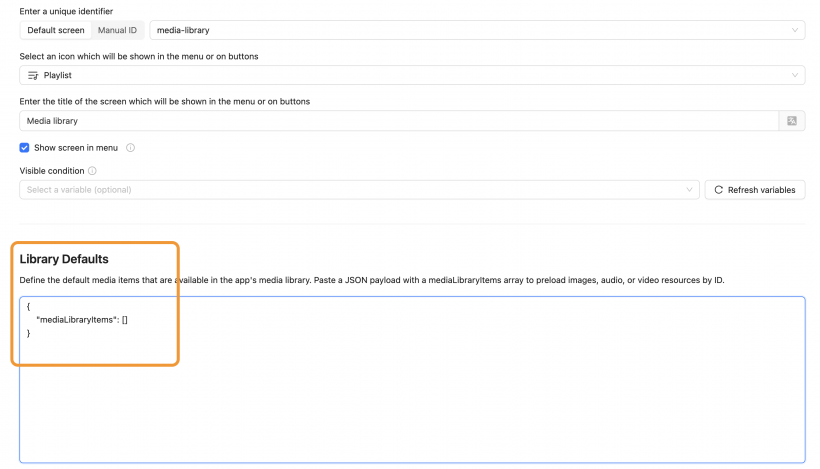
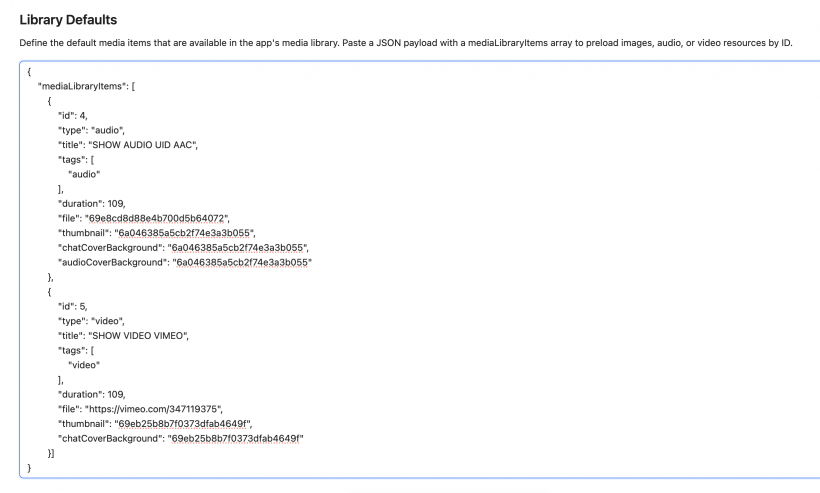
Items configured here are loaded automatically when the app starts. They behave identically to items added via the coaching command.
Be sure to use the right structure with
{"mediaLibraryItems": [YOUR-ITEMS-GO-HERE]}
7.4 show-media-library-items
Displays multiple media items in the chat and adds them all to the media library at the same time. This is the batch equivalent of show-media-library.
Purpose
- Present a collection of media items at once during a chat flow.
- Ensure all items are immediately stored in the user's media library.
Example
show-media-library-items {
  "items": [
    {
      "id": 1,
      "type": "audio",
      "title": "Vanessa's Story with more than just a thumbnail",
      "tags": ["audio"],
      "duration": 109,
      "file": "69e8c46888e4b700d5b6405e",
      "thumbnail": "6a046283a5cb2f74e3a3b046",
      "chatCoverBackground": "6a046283a5cb2f74e3a3b046",
      "audioCoverBackground": "6a046283a5cb2f74e3a3b046"
    },
{
  "id": 2,
  "type": "video",
  "title": "SHOW VIDEO VIMEO",
  "tags": ["video"],
  "duration": 109,
  "file": "https://vimeo.com/347119375",
  "thumbnail": "69eb25b8b7f0373dfab4649f",
  "chatCoverBackground": "69eb25b8b7f0373dfab4649f"
}
  ]
}
Good to Know
- The same structure and rules apply as for
show-media-library. - All items become immediately visible to the user in the chat.
- All items are automatically stored in the media library.
Be sure to use the right structure with
show-media-library-items {"items": [YOUR-ITEMS-GO-HERE]}
7.5 unlock-media-library
Makes a previously hidden media item visible in the media library.
Purpose
- Release media content that was added in advance.
- Control visibility independently from creation.
Syntax
unlock-media-library IDExample
unlock-media-library 3305unlock-media-library de24Good to Know
- No quotation marks are required.
- The media item must already exist in the media library.
- Unlocking does not display the media in the chat.
7.6 media-library-button
Displays an existing media library item in the chat by referencing its ID.
Purpose
- Reuse existing media items.
- Avoid duplicating or reloading media content.
Syntax
media-library-button ID [Optional title]Example
media-library-button 2205media-library-button 1877 7 Tips for relaxingGood to Know
- No quotation marks are required.
- The referenced media item must already exist in the media library.
- The media is displayed without modifying its state in the library.
7.7 Tag Localization
Tags can be localized to display user-friendly labels in the media library.
Example
set-media-library-tags {
  "relaxation": "Relaxation",
  "sleep": "Sleep",
  "sheep": "Amazing sheeps"
}
set-media-library-tags {
"relaxation": "Relaxation",
"sleep": "Sleep",
"dragon": "Mighty dragons",
"sheep": "$localizedSheepTag"
}This command defines localized labels for tags. The localized values are used when media items are displayed via show-media-library, show-media-library-items, or add-media-library. You can also use multilingual variables for the localization — make sure to localize the variable beforehand, as shown in the second example above.
Default tags
The following default tags are available for filtering and do not need to be explicitly set:
audiovideoinfolinkquestionnaire
8. Best Practices
8.1 Cover Images and Thumbnails
When configuring cover images and thumbnails for a media item, the following guidelines help ensure it displays correctly in every context (chat, full-screen player, media library overview):
- Use
audioCoverBackgroundfor optimal full-screen display — This image is shown large-format in the full-screen audio player. Format: 1080x1920px. - Use
chatCoverBackgroundfor chat-optimized display — This image is shown when the item appears within the chat. Format: 1920x1080px. - Always define
thumbnailas a universal fallback — The thumbnail is used wherever no more specific cover image is available, e.g. in the media library overview. Format: 1080x1080px. coveras a middle ground — If only one image should be used for both full-screen and chat display instead of settingaudioCoverBackgroundandchatCoverBackgroundseparately, usecover. Format: either 1080x1920px (full-screen) or 1920x1080px (chat), depending on where it is displayed.
If
thumbnail,chatCoverBackground, andaudioCoverBackgroundare all defined,covercan be omitted.
8.2 Supported File Formats and Size Limits
Media uploads must comply with the following format and size restrictions to ensure playback works reliably on both Android and iOS:
| Media type | Max. file size | Supported formats | Codec |
|---|---|---|---|
| Image (thumbnail, cover, etc.) | 5 MB | JPG, PNG | — |
| Audio | 50 MB | AAC, M4A | H.264 |
| Video | 100 MB | MP4, M4V | H.264 |
Uploads exceeding these limits or using other formats/codecs may not play correctly on all devices.