Coachings
You found the most important menu when it comes to creating your coaching 👏
Select your coaching by clicking on it and then click on the button
Editto start your coaching creation journey.
Main Functions
New: Clicking this button initiates the creation of a new coaching. It opens a blank template where you can define the structure and content of a new coaching.Import: This button allows you to import coachings, which you previously exported from the Coaching Editor. It's particularly handy for transferring dialogues from a different server or restoring earlier versions of a coaching from a backup file. See also "Export".Export: Use this button to export the current coaching. This feature is beneficial for creating backups, or transferring coachings to another server.Rename: If you need to change the name of an existing coaching, this button will enable you to do so.Edit: This is the most important button here! It takes you to the editing interface for the selected coaching, where you can modify the content, flow, and rules of the dialogue.Duplicate: Creates a copy of the selected coaching. This is especially useful when you want to create a similar coaching without starting from scratch or if you want to develop a new version of the coaching but keep the old version (as a backup).Delete: This option will remove the selected coaching from the CoachStudio Coaching Editor. Use this with caution, as it will permanently erase the selected coaching. You can only delete a coaching, when the Monitoring Status and the Coaching Status are set to "inactive".Report: This function produces an HTML report for the selected coaching session, detailing all the messages and rules that are incorporated within the coaching. This report can be useful for proofreading identifying issues within the coaching. For more details, see "Validation Report" in this chapter.Validate: This feature checks the selected coaching dialogues automatically for typical errors or inconsistencies, ensuring that the messages and conditions are set up correctly.Results: Click here to view the outcomes and responses from (test) users.Internationalisation: Use this feature to export coaching dialogues for translation and re-import them once localized, enabling multilingual coaching support.Problems: If the system detects any issues with the coaching dialogues, clicking this button will provide a list of identified problems and potential solutions.Support: This button is designed to handle user support requests by providing access to options like resetting monitoring, creating access codes, extending contracts, and deleting participant accounts.Problems: Here, responses are collected that cannot be processed by the system and can then be manually handled by support staff (Not relevant to app-based coachigs).Brand: This button allows you to import a JSON file defining variables needed to brand a coaching for a certain client (e.g. name of the coach, name of the client, etc.).

Validation Report
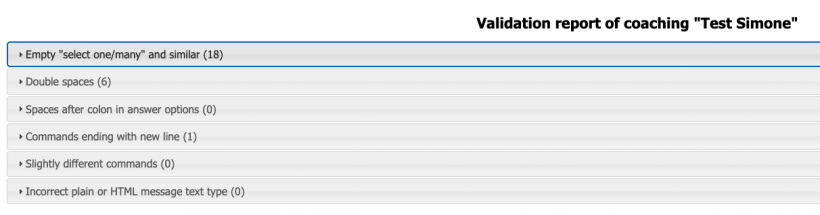
The Validation Report serves as an automated check to identify inconsistencies, formatting errors, and potential issues within the coaching's dialogue content before it goes live. Clicking on each category unfolds a list of specific issues:
- Empty "select one/many" and similar: Lists dialogues where selection prompts lack choices.
- Double spaces: Highlights messages with unintended double spacing that could disrupt text formatting.
- Spaces after colon in answer options: Identifies answer options with superfluous spaces after colons, affecting the correct storage of answers.
- Commands ending with new line: Detects commands that erroneously conclude with a new line character, which could impact functionality.
- Slightly different commands: Points out slight variations in commands across different languages of a message that may suggest errors or unintended differences.
- Incorrect plain or HTML message text type: Catches messages where the text type may not match the expected format, either in plain text or HTML, ensuring content displays correctly.