Javascript Snippet
Last updated: June 2026
This feature allows you to execute a JavaScript-based calculation at a specific point in the coaching flow.
The result of the calculation can be stored in an existing coaching variable and reused later in the coaching.
This is particularly useful when:
- calculations using standard decision points would become too complex or hard to maintain
- multiple dependent variables need to be processed together
- advanced or custom logic is required
1. Step-by-Step Setup
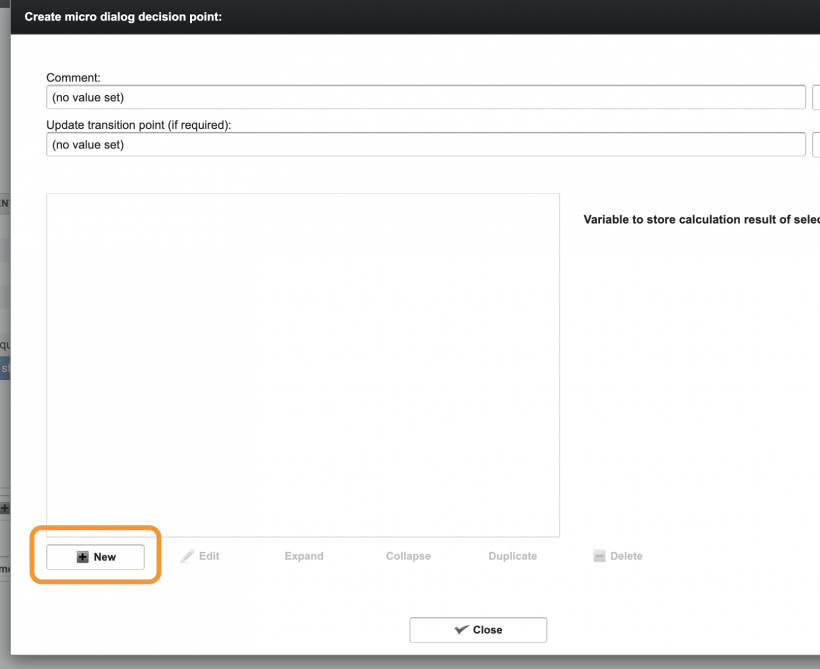
In the Coaching, where you want to execute the Javascript snippet, add a new Decision Point.
1.1 Add a Comment (Optional)
Fill in the Comment field.
- This is not visible during the coaching
- It is used internally to describe the purpose of the decision point
- Helps with maintainability and later understanding
1.2 Create a New Rule
- Click on "New" to open the Create Rule window
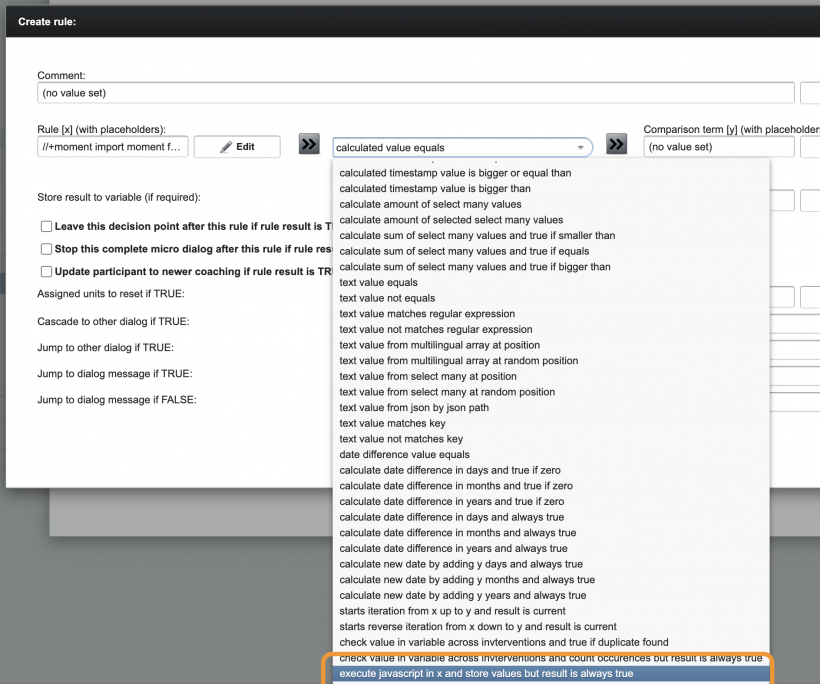
- In the dropdown, select:
Execute javascript in x and store values but result is always true
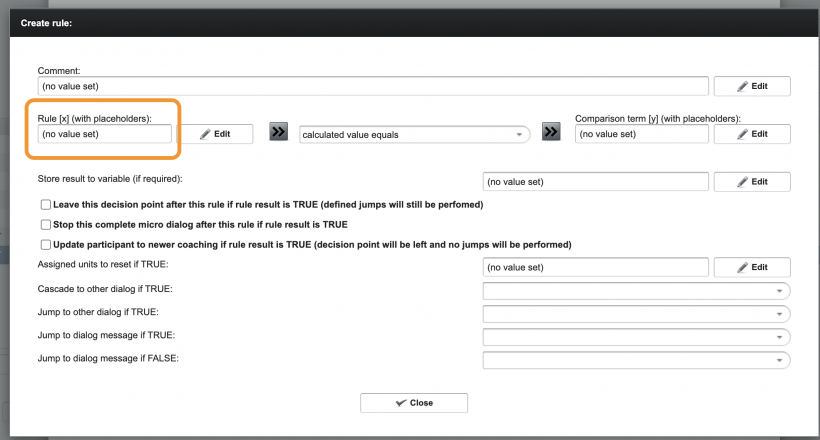
1.3 Edit the Rule
- Click on "Edit Rules [x] (with placeholders)"
- Enter your JavaScript snippet in the field:
2. How Execution Works
When the decision point is reached during a coaching session, the following steps happen automatically:
- Placeholder substitution — before the script is parsed, all variable references are replaced with the participant's current values:
$variableNameis replaced with the participant's current variable value$$objectName$$is replaced with a full JSON object$$storyProgress$$and other system variables are injected automatically
- Script execution — the substituted script is evaluated as ECMAScript 2024
- Result writing — the last expression of the script must be an object literal; each key of that object is written back as a participant variable (the
$prefix is added automatically) - The rule always evaluates to true — the coaching flow continues immediately after execution
Timeout: Scripts have a hard execution limit of 60 seconds. Long-running loops or slow external calls will be interrupted without a partial result. Design accordingly.
3. JavaScript Snippet
Your snippet can contain any valid JavaScript logic.
3.1 Important Concepts
- Input and output variables (e.g.
$hours_spent_on_social_media,$days_lost_per_year)
must be defined beforehand as variables with access setting:
→ "manageable by service" - The calculation result must be explicitly assigned to an output variable
- The last expression of the script must be a result object — each key becomes a participant variable
3.2 Reading Input Variables
Variables are inlined as text before the script is parsed. Always handle them carefully:
// Numeric variable — multiply by 1 to cast to number
const weight = '$weightKg' * 1

// Text variable — always wrap in quotes to handle empty values safely
const name = '$userName'

// JSON object variable — becomes a real JS object (no quotes needed)
const lastOrder = $$lastOrder$$
Important: If a referenced variable does not exist, the placeholder is replaced with an empty string. Always quote text variables to avoid syntax errors.
3.3 Writing Output Variables
The last expression of your script must be a plain object. Each key becomes a $variable in the coaching:
const result = {
    ageKid: 7.5,       // → writes $ageKid
    greeting: 'Hello'  // → writes $greeting
}
result
Supported value types and how they are stored:
| JavaScript type | Stored as |
|---|---|
null / undefined |
the string "null" |
| boolean | "true" / "false" |
| number | value.toString() (e.g. 84, not 84.0) |
| string | the raw string |
| array | JSON serialization |
| object | JSON serialization |
Note on numbers: The engine preserves integer types (e.g.
84not84.0). UseString(...)orMath.round(...)if a specific format is required.
3.4 Available Libraries
The first lines of a script can declare which optional modules to load using the //+ pragma syntax:
//+ moment, fetch, mcp, file-data, llm
| Pragma | Provides | Notes |
|---|---|---|
moment |
Moment.js 2.30.1 | Date/time calculations |
fetch |
fetch(url, options) |
HTTP requests to external APIs |
mcp |
mcp(...) |
Model Context Protocol calls (see MCP chapter) |
file-data |
fileData(...) |
Read/write files in the media store |
llm |
llm(index, prompt) |
Call an LLM configured on the intervention |
pm-json-compress-light |
Internal JSON helper | JSON compression utility |
Note:
importstatements (e.g.import moment from 'moment') are automatically stripped before execution. Keep them in your script for IDE support and local testing — they have no effect inside the coaching.
3.5 Example: Calculate Age from Birthdate
This example demonstrates how to calculate the age of a child based on a given birthdate using JavaScript and the moment library.
The result is stored in a coaching variable and can be reused later in the flow.
JavaScript Snippet
//+ moment
import moment from 'moment'
let birthdayKid = '$birthdayKid'; // e.g. '22.05.2024'
let ageKid = 99;
try {
    let birthday = moment(birthdayKid, 'DD.MM.YYYY', true);// Validate input date
    if (!birthday.isValid()) throw new Error('Invalid date');let today = moment();
    let ageInYears = today.diff(birthday, 'years', true);// Round to 2 decimal places
    ageKid = ageInYears.toFixed(2);
}
catch (e) {
    console.log('age calculation did not work');
}

// Return result
const resultObject = {
    ageKid: ageKid * 1
};
resultObject;
Explanation
- Input Variables
'$birthdayKid'represents the input variable (e.g.22.05.2024)- The value is expected in the format
DD.MM.YYYY— it is handled as a string. To treat a variable's value as a number, multiply it:$age * 1
- Using moment
- The snippet uses the
momentlibrary for date handling - The third parameter (
true) enables strict parsing and prevents invalid formats from being silently accepted
- The snippet uses the
- Output Variables
- Make sure the variable already exists via the variables tab
$ageKidcan then be used just as a regular variable in the coaching
Behavior
The JavaScript is executed when the decision point is reached. The result is written into the defined output variable(s). The rule itself always evaluates to true. The coaching flow continues immediately after execution.
3.6 Example: Process Questionnaire Answers
This example demonstrates how to extract and structure the full answers from completed questionnaires — and forward them e.g. to an external server via MCP.
Background: Completed questionnaire data is normally only available in the export. This snippet makes the full survey responses available directly inside the coaching flow, for example to feed a live dashboard on an external server.
JavaScript Snippet
//+moment
import moment from 'moment'

const debug = true // Set to true to use your testing input. When using in the coaching, set this to false!

let storyProgress = $$storyProgress$$

if (debug) {
    // Paste a representative storyProgress object here for local testing.
    // The latest questionnaire is always at index [0].
    storyProgress = {"questionnaires": [{"title": "How are you right now?", "id": "how-are-you-right-now", "frontendId": "temp_72a362e5-41b2-44a3-bf38-2399dd22266f", "version": 1, "mode": "page", "cover": "66cdbb7875fa0567a3bbd076", "chatOnly": false, "description": "How much do you feel affected by the following symptoms **right now**?", "complete": "Thank you for your information!", "writeToVariables": {"wellBeingOverall": "{{{wellBeingOverall}}}", "wellBeingSchool": "{{{wellBeingSchool}}}", "wellBeingWork": "{{{wellBeingWork}}}"}, "readFromVariables": {}, "validDays": 2, "multiSubmit": false, "questionnaireVariables": [{"wellBeingOverall": {"write": "0"}}, {"wellBeingSchool": {"write": "0"}}, {"wellBeingWork": {"write": "0"}}], "questions": [{"id": "0a4873a0-0d46-4345-b650-b64b64a657cd", "type": "image", "page": 1, "image": "67a4c4a0be780c4ce52a17bb", "layout": "large", "imageMode": "contain"}, {"id": "c8d4c994-a1c2-4d9d-897a-cb70fd1d4e7a", "type": "text", "page": 1, "title": "First we would like to get to know you better", "text": "How do you feel about the following statements? "}, {"id": "342d4a47-3604-4d1c-83c5-1db5dc4e7e61", "type": "slider", "page": 1, "conditions": [], "title": "Little interest or enjoyment in my activities", "layout": {"minLabel": "not at all", "maxLabel": "very", "initialPosition": 2}, "validation": {"min": 0, "max": 5, "step": 1}}, {"id": "923a922f-1572-4f50-9a8c-397bf66702fa", "type": "slider", "page": 1, "title": "Feeling motivated to get up in the morning", "layout": {"minLabel": "not at all", "maxLabel": "very", "initialPosition": 2}, "validation": {"min": 0, "max": 5, "step": 1}}, {"id": "b71a8ff0-e47c-41c5-a0e9-4c818f0e8254", "type": "image", "page": 2, "image": "684a95ecc055727cabdec1b0", "layout": "medium"}, {"id": "820448ec-f12f-439b-98f4-11d773d30c68", "type": "select-one", "page": 2, "title": "Did your behaviour lead to your needs being met?", "answers": [{"label": "Yes", "value": "1"}, {"label": "No", "value": "2"}]}, {"id": "e2206b6d-20f5-4347-9560-0872aca5736f", "type": "text", "page": 2}], "read": false, "timestamp": 1779357422830}, {"id": "1aek3lsjdk3", "version": 1, "title": "Sample Questionnaire", "cover": "t66ed810433690a15a22633ea", "complete": "Thank you for completing the questionnaire!", "mode": "page", "description": "Ok, then I would like to ask you some questions.", "questions": [{"type": "text-input", "variable": "userName", "title": "What is your name?", "placeholder": "Enter your name...", "validation": {"minLength": 1, "maxLength": 50}, "page": 1}, {"type": "slider", "variable": "satisfactionLevel", "title": "How satisfied are you with our service?", "unit": "%", "validation": {"min": 0, "max": 100}, "page": 2}, {"type": "select-one", "variable": "mealPreference", "title": "What is your meal preference?", "answers": [{"label": "Vegetarian", "value": "vegetarian"}, {"label": "Vegan", "value": "vegan"}, {"label": "Non-Vegetarian", "value": "non-vegetarian"}], "validation": {"required": true}, "page": 3}, {"type": "stage-text", "text": "You have selected {{{mealPreference}}} as your meal preference.", "page": 4}, {"type": "select-many", "variable": "exerciseTypes", "title": "Which types of exercise do you do regularly? (Select all that apply)", "answers": [{"label": "Running", "value": "running"}, {"label": "Cycling", "value": "cycling"}, {"label": "Yoga", "value": "yoga"}, {"label": "Swimming", "value": "swimming"}], "validation": {"minAnswers": 1, "maxAnswers": 4}, "page": 5}, {"type": "text", "title": "Final Information", "text": "Thank you for sharing your preferences. Please review your answers before submitting.", "page": 6}, {"type": "image", "image": "66ed810433690a15a22633ea", "layout": "medium", "page": 6}], "read": false, "timestamp": 1779357407519}], "questionnaireAnswers": {"1aek3lsjdk3": {"id": "1aek3lsjdk3", "version": 1, "answers": [{"variable": "userName", "value": "Simone", "displayLabel": "Simone"}, {"variable": "satisfactionLevel", "value": "0", "displayLabel": "0"}, {"variable": "mealPreference", "value": "vegan", "displayLabel": "Vegan"}, {"variable": "exerciseTypes", "value": ",cycling,yoga,", "displayLabel": "Cycling\nYoga"}], "startTimestamp": 1779357408616, "endTimestamp": 1779357419681}, "how-are-you-right-now": {"id": "how-are-you-right-now", "version": 1, "answers": [{"variable": "default_slider_0", "value": "2", "displayLabel": "2"}, {"variable": "default_slider_1", "value": "2", "displayLabel": "2"}, {"variable": "default_select-one_2", "value": "2", "displayLabel": "No"}], "startTimestamp": 1779357424247, "endTimestamp": 1779357428580}}}
}

// Helper: find a questionnaire definition by id
function getQuestionnaire(id) {
    return storyProgress.questionnaires.find(q => q.id === id) || null
}

// Helper: get the answers for a questionnaire by id
function getAnswers(id) {
    return storyProgress.questionnaireAnswers?.[id]?.answers || []
}

// Build a structured summary of all completed questionnaires
const completedIds = Object.keys(storyProgress.questionnaireAnswers || {})
const questionnaireResults = completedIds.map(id => {
    const meta = getQuestionnaire(id)
    const answers = getAnswers(id)
    const answerData = storyProgress.questionnaireAnswers[id]const answerMap = {}
    answers.forEach(a => {
        if (a.variable) {
            answerMap[a.variable] = {
                value: a.value,
                displayLabel: a.displayLabel
            }
        }
    })

    return {
        id: id,
        title: meta?.title || id,
        completedAt: answerData.endTimestamp,
        durationSeconds: Math.round(
            (answerData.endTimestamp - answerData.startTimestamp) / 1000
        ),
        answers: answerMap
    }
})

const o = {
    submittedAt: moment.now().valueOf(),
    questionnaires: questionnaireResults
}
o
Explanation
1. Input: $$storyProgress$$
The system variable $$storyProgress$$ is injected automatically at runtime. It contains all questionnaires defined in the coaching and their answers, if completed. The latest questionnaire is always at the top and can be accessed directly via storyProgress.questionnaires[0]. Answers are found under storyProgress.questionnaireAnswers, keyed by questionnaire ID.
The debug flag allows pasting in a representative test object during development so the snippet can be tested without a live coaching session.
2. Building a structured result
This snippet iterates over all completed questionnaires and assembles a clean object per questionnaire: id and title for identification, completedAt and durationSeconds for timing, and answers as a flat key-value map.
3. Output: o
The result is written into o. The variables within o need to be predefined in the variables tab — in this example $submittedAt and $questionnaires. The timestamp is generated using moment.now().valueOf() to ensure a reliable Unix timestamp.
Alternative pattern: Instead of individual variables, you can package the entire payload into a single variable:
const o = {
    mcpResult: {
        submittedAt: moment.now().valueOf(),
        questionnaires: questionnaireResults
    }
}
This makes the full dataset available as one object — useful when forwarding to an external server via MCP.
Example Output Structure
{
    "submittedAt": 1779357430000,
    "questionnaires": [
        {
            "id": "1aek3lsjdk3",
            "title": "Sample Questionnaire",
            "completedAt": 1779357419681,
            "durationSeconds": 11,
            "answers": {
                "userName": { "value": "Simone", "displayLabel": "Simone" },
                "satisfactionLevel": { "value": "0", "displayLabel": "0" },
                "mealPreference": { "value": "vegan", "displayLabel": "Vegan" },
                "exerciseTypes": { "value": ",cycling,yoga,", "displayLabel": "Cycling\nYoga" }
            }
        }
    ]
}
4. Working with Sensor Data
Sensor data can be queried directly inside snippets using a special placeholder syntax. You write a query object in your script — the system replaces the entire object with an array of matching datapoints before the script runs.
// All heart rate readings from the last 7 days
const heartrates = {
    "$$SENSOR_DATA$$": "heartrate",
    "types": ["bpm", "rest"],
    "startRelativeInclusive": "-7d",
    "endRelativeExclusive": "now"
}

// heartrates is now a JS array — iterate normally
const avgBpm = heartrates
.filter(d => d.type === 'bpm')
.map(d => Number(d.data))
.reduce((a, b) => a + b, 0) / heartrates.length

const result = { avgBpm: Math.round(avgBpm) }
result
Each element in the resulting array has this shape:
{ timestamp: <ms>, type: <string>, data: <string> }
data is always a string — cast with Number(...) or JSON.parse(...) as needed.
Available query fields:
| Field | Type | Purpose |
|---|---|---|
$$SENSOR_DATA$$ |
string | Required. Sensor identifier to query |
types |
string[] | Restrict results to specific data type values |
startTimestampInclusive |
number | Absolute lower bound (ms) |
endTimestampExclusive |
number | Absolute upper bound (ms, exclusive) |
startRelativeInclusive |
string | Relative offset, e.g. "-7d" |
endRelativeExclusive |
string | Relative offset, e.g. "now" |
Important: Sensor data queries are static — the substitution happens before the script is parsed. You cannot build the query object dynamically from JavaScript variables at runtime. If you need conditional queries, write multiple placeholder objects and select between them using an
ifstatement.
5. Feature Support
The following features are confirmed to work:
const/let, arrow functions, template strings, destructuring, spread ([...arr])String.prototype.replaceAll(ES2021)Array.prototype.at(-1)(ES2022)Array.prototype.toReversed,findLast,findLastIndex(ES2023)- Static class methods
Note: Top-level
awaitand async functions at the script root are not supported. Use synchronous APIs (the built-infetch,mcp, andllmhelpers are all synchronous).
6. Local Development & Testing
Because iterating on coaching rules requires deploying and triggering a full participant session, it is strongly recommended to develop and test scripts locally first.
6.1 The DEBUG Pattern
Start every non-trivial script with a DEBUG flag. When true, the script uses local test fixtures; when false, it uses the live coaching placeholders. This makes the same script runnable both locally and inside the coaching without any changes other than flipping the flag.
//+ moment
// stripped by coaching runtime, real import locally
import moment from 'moment'

// flip to true while iterating locally
const DEBUG = false

const nickname  = DEBUG ? 'Tester' : '$nickname'
const weightKg  = DEBUG ? 78 : Number('$weightKg')
const lastOrder = DEBUG ? { items: [{ price: 5, qty: 2 }, { price: 3, qty: 1 }] }
: $$lastOrder$$

// --- business logic uses only normal JS values from here ---

const totalPrice = lastOrder.items.reduce((s, i) => s + i.price * i.qty, 0)

const result = {
    greeting: "Hello ${nickname}",
    totalPrice,
    reportDate : moment().format('YYYY-MM-DD')
}
result
The import line is stripped by the coaching runtime before execution — keep it in the script so your local IDE and external runners can resolve the module.
6.2 Debugging Output Variables
Use the result object as a lightweight log during development. Prefix debug variables clearly so you can strip them before going live:
const result = {
    out_totalPrice: totalPrice, // real output
    debug_inputs: JSON.stringify({ nickname, weightKg })  // remove before go-live
}
result
$debug_* variables can be inspected in the admin UI after a run.
7. Common Pitfalls
- Always end with the result object as the last expression. No statements should follow it.
- Quote string variables (
'$textVar') — unquoted text variables produce syntax errors after substitution if the value is empty or contains spaces. - Missing variables become empty strings, not
undefined. Guard accordingly:const val = '$maybeEmpty' || 'default'. - Sensor data queries are static — you cannot build them dynamically from JS variables at runtime.
- Do not rely on a specific number format —
84vs84.0can differ. UseString(...)orMath.round(...)when format matters. - 60-second hard timeout — there is no partial result on timeout; design for fast execution.
- File references must be returned in the result object to persist. Files created but not included in the result are deleted automatically after the run.
- Top-level
awaitis not supported — all built-in helpers (fetch,mcp,llm) are synchronous.
Use JavaScript snippets when:
- Decision point logic becomes too large or difficult to manage
- Calculations involve multiple steps or transformations
- Formulas are complex or not easily expressible with standard rules
- You want to centralize logic in a single, readable block
Key Takeaway: JavaScript calculations provide a flexible way to handle complex variable logic within the coaching flow, while keeping decision point configurations clean and maintainable.