LLM Session
Last updated: March 2026
1 Concept
The LLM Session feature allows a rule-based coaching to hand over control to an LLM-guided conversation — and later return to rule-based logic.
- One LLM session covers exactly one topic
- A coaching can contain multiple LLM sessions
- The start of an LLM session is defined by the coaching designer
- The session ends either:
- automatically by the LLM (based on defined stop criteria), or
- manually by the app user
This enables flexible, natural conversations without having to define every conversational turn explicitly.
Make sure to write prompts only in english!
2 User Experience
For app users, LLM sessions are seamlessly integrated into the normal chat flow.
- AI-generated messages are visually marked
- Replies to LLM messages are labeled AI Chat
- Users can:
- answer with free text
- stop the AI chat via a close icon
- end the session implicitly (e.g. "I don't have any further questions")
3 Configuration Prerequisites
Before using LLM Sessions:
- An LLM must be defined for the coaching
- Global LLM Settings must be configured in Basic Settings
4 Creating an LLM Session
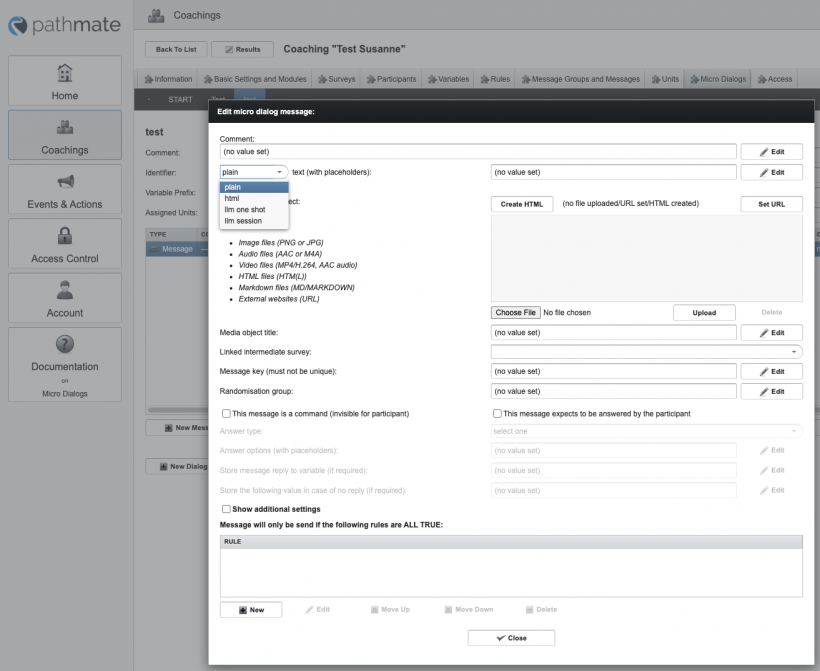
LLM sessions are configured in the CoachStudio Coaching Editor:
- Navigate to Micro Dialogs
- Create a new message
- Select LLM Session instead of plain text
The editor switches to the LLM Session configuration view.
5 LLM Session Configuration Steps
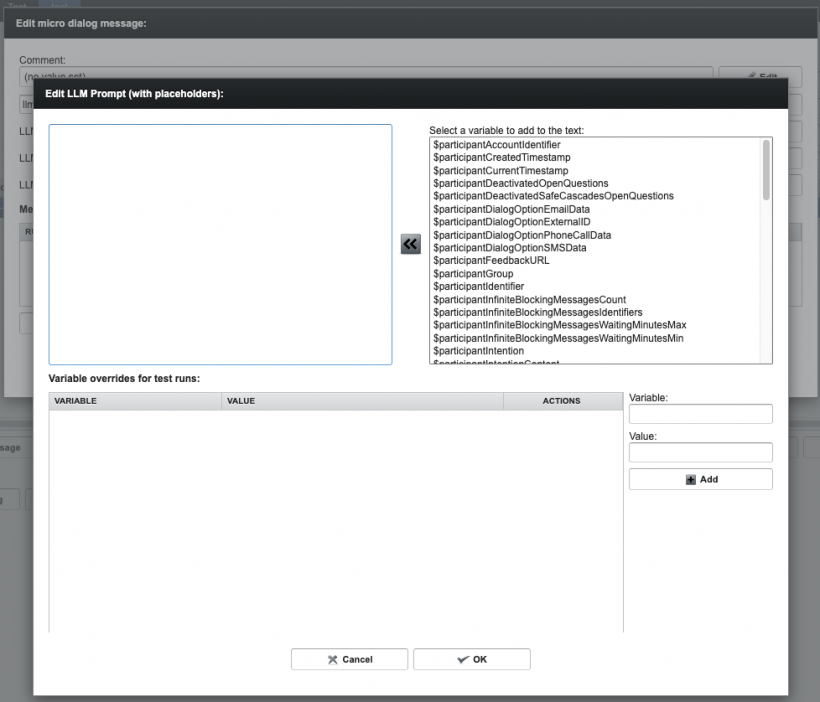
Step 1: LLM Session Prompt
Defines how the LLM should start the conversation.
- Entry point into the topic
- Supports placeholders (variables)
- Variables can be initialized for testing
Example:
Ask user if he/she wants to know more about activities in the season.
Design Tip:
The transition from LLM Session back to rule-based flow must be designed carefully.
It is often perceived as a usability break.
Best practice:
Use an LLM OneShot after an LLM Session without an open user answer.
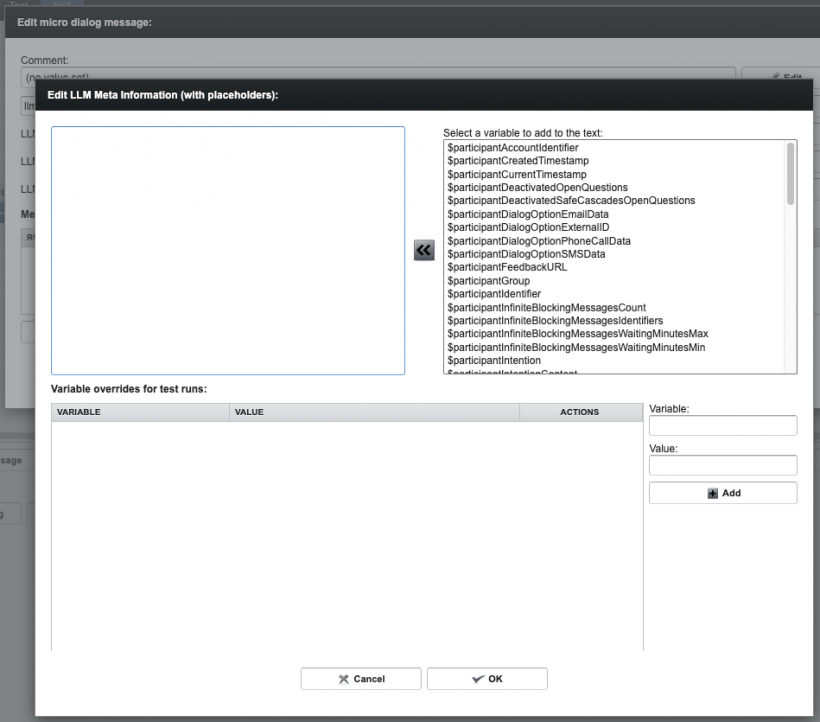
Step 2: LLM Meta Information
Defines the scope and topic of the conversation.
- Describes what the conversation is about
- Supports placeholders (variables)
Example:
Learn more about winter activities.
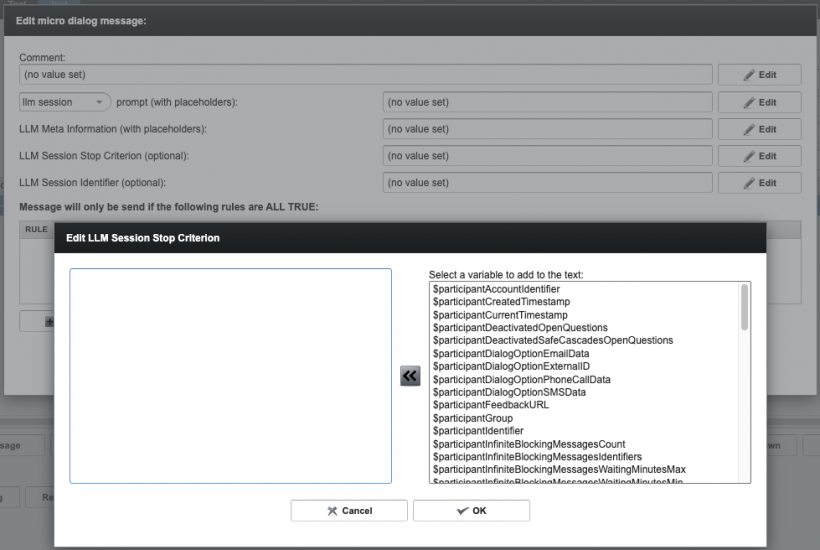
Step 3: LLM Session Stop Criterion (Optional)
Defines when the LLM should end the conversation.
Example:
Stop the conversation if the user has no further questions or after about 4–5 questions.
Step 4: LLM Session Identifier (Optional)
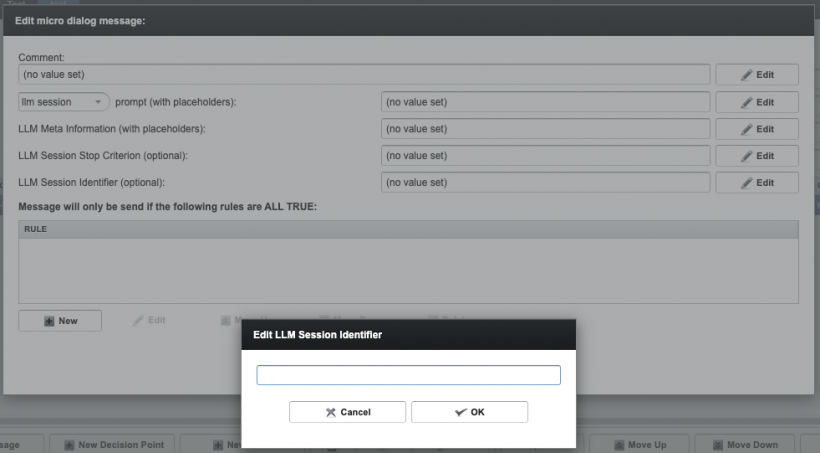
The LLM Session Identifier allows linking multiple LLM sessions into a shared conversational context.
- If no identifier is set, each LLM session is treated as an independent conversation.
- If the same identifier is reused in a later LLM session, the LLM retains the context of the previous interaction.
This can be thought of as continuing the same conversation thread — similar to reopening an existing chat instead of starting a new one.
Use case:
- A user starts a conversation about a topic (e.g. stress management)
- Later in the coaching, another LLM session with the same identifier is triggered
- The LLM can pick up previous information, questions, or preferences from the earlier interaction
This allows for more coherent, stateful conversations across different points in the coaching.
Note:
Use identifiers only when a continued context is explicitly desired. Otherwise, leave the field empty to ensure clean, independent conversations.
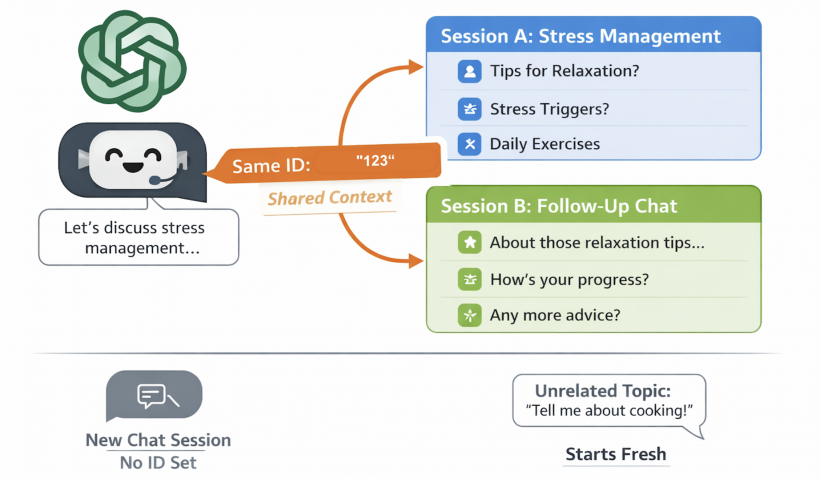
Example Explanation of the Illustration
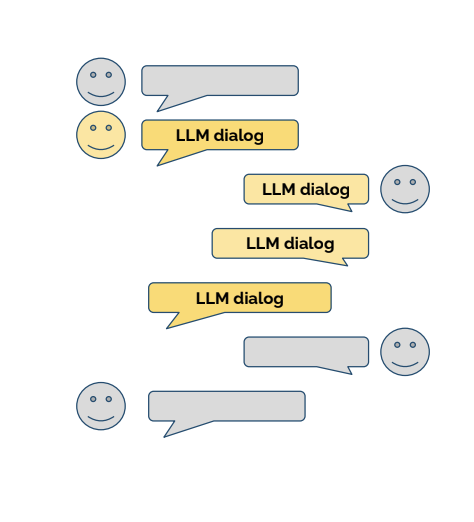
The diagram can be understood by comparing it to the familiar interface of ChatGPT or similar LLM-based tools.
On the left side, you typically see a list of individual chat conversations. Each of these chats represents a separate session. By default, these sessions are independent — meaning that starting a new chat is equivalent to starting with a blank context.
The illustration builds on this mental model:
- Session A (top right) represents an initial conversation, for example about stress management. Within this session, the LLM gathers context such as discussed topics, user preferences, and previous questions.
- Session B (bottom right) represents a later interaction. Normally, this would be a completely new chat with no memory of Session A.
- The key element is the "Same ID" connection between both sessions. By assigning the same LLM Session Identifier (e.g.,
"Session123"), both sessions become logically linked.
What this means
- Session B is no longer treated as an isolated conversation
- Instead, it inherits the context from Session A
- The LLM can refer back to earlier topics (e.g., relaxation techniques or stress triggers) without requiring the user to repeat them
Without a Session Identifier
In contrast, the bottom part of the illustration shows a new chat without an identifier:
- This behaves like a standard new conversation in ChatGPT
- No prior context is available
- The interaction starts from scratch
Key Takeaway: The LLM Session Identifier effectively transforms multiple separate chat sessions into a continuous conversation thread, even if they occur at different times or are technically separate interactions.
This mechanism is particularly useful in scenarios like coaching, where:
- conversations are spread across multiple sessions
- continuity and personalization are important
- prior context should be preserved without manual repetition
6 Result Variables & Session Handback
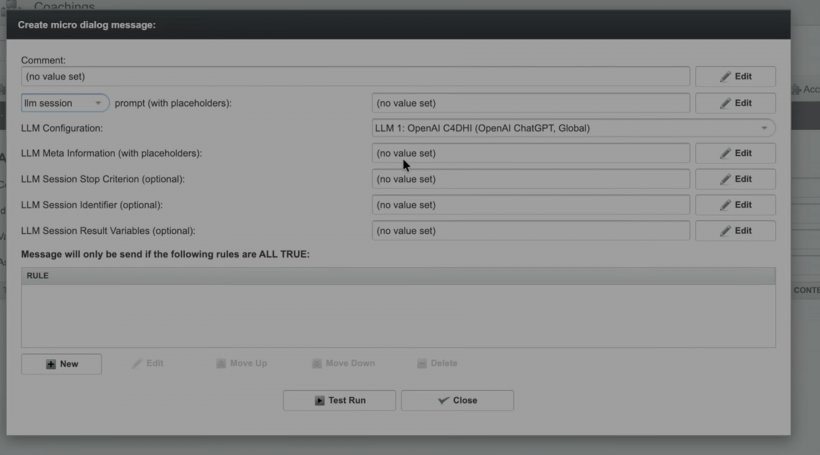
Session dialogs support advanced interaction patterns, including:
- Dynamic conversations
- Structured data collection
- Real-time variable extraction
Defining Result Variables
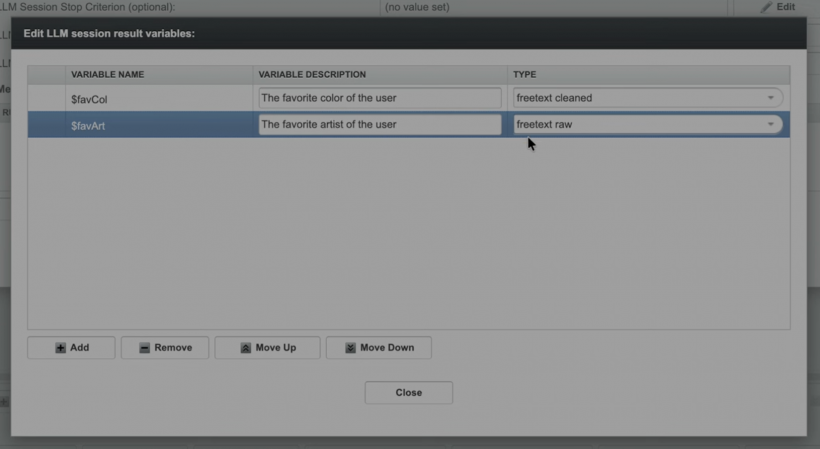
Within a session, you can define typed variables to extract from the conversation:
| Variable | Type |
|---|---|
$favCol |
Free text |
$facArt |
Free text |
num_children |
Number |
birthday |
Custom format |
For each variable, specify a name, description (used as context for the LLM), and type/format.
Supported types:
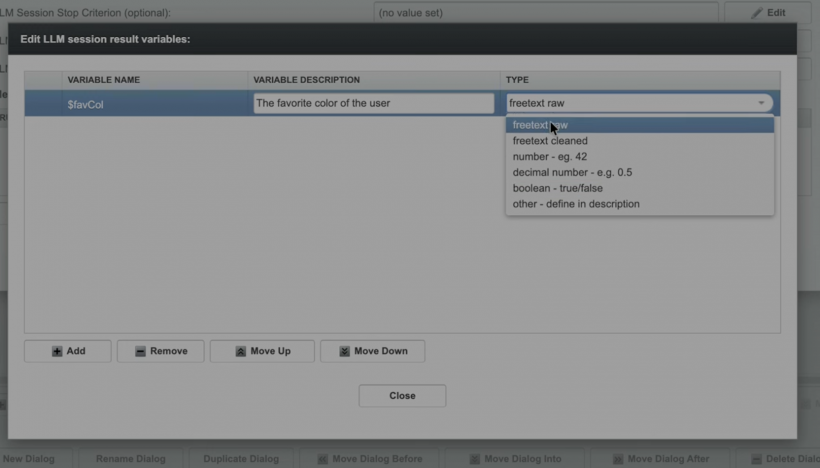
- Freetext raw (no user input modifications)
- Freetext cleaned (lowercase)
- Number (automatically parsed from natural language, e.g., "two children" →
2) - Decimal number (e.g. 0.5)
- Boolean (true or false)
- Other (format must be defined in the variable description, e.g., dates in a specific structure)
Extracted values are validated against the defined format and normalised automatically. Incorrect formats can be rejected or corrected without relying solely on raw LLM output.
Stop Criteria
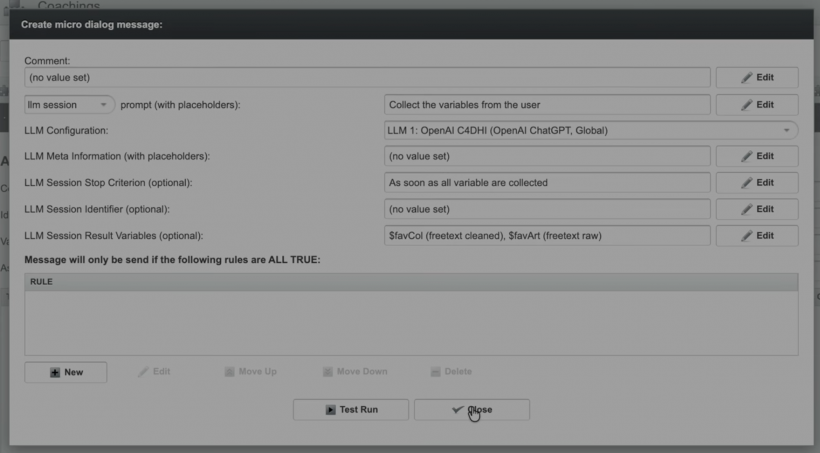
You can define conditions under which a session ends automatically — for example, once all required variables have been collected. This enables efficient, controlled conversation flows with reduced user friction.
7 Visualisations
Here are some screenshots that demonstrate how LLM Session bubbles are shown in the chat.
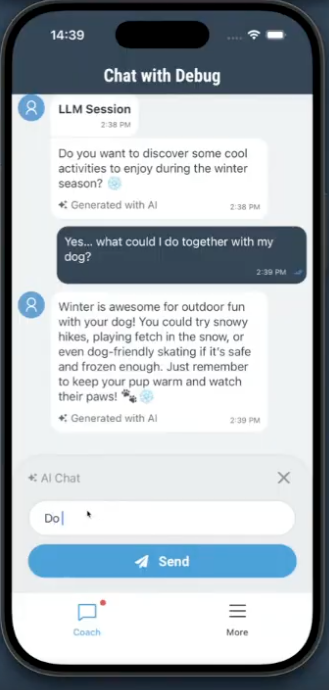
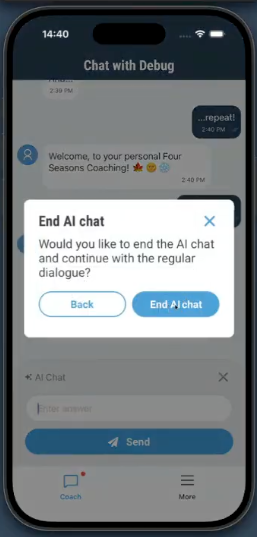
User View:
- AI generated messages are indicated at the bottom
- Answers to an AI are indicated as "AI Chat"
User Options:
- Answer as free text
- Stop AI chat with click on cross in upper right corner
- Stop AI chat by answering accordingly, e.g. I don't have any further question.