Basic Settings and Modules
Last updated: February 2026
Important:
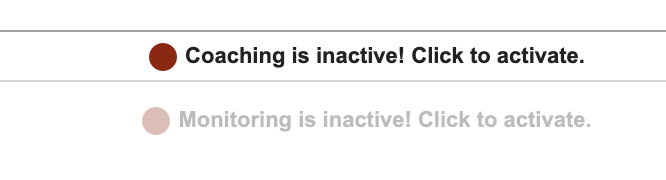
Before editing the basic settings of a coaching, both the Coaching and Monitoring must be deactivated.
1. Overview
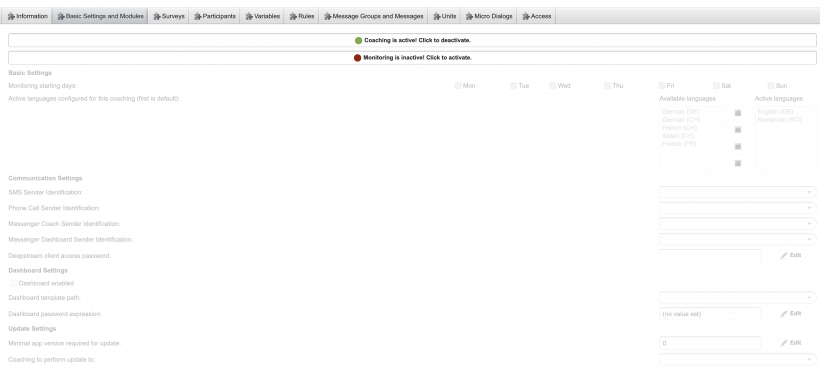
The Basic Settings & Modules section defines global configuration options for a coaching. These settings control system behavior, communication channels, monitoring logic, language availability, and AI-related configuration. Changes made here affect how the coaching operates at a fundamental level.
2. General Settings
Assigned Sender Identification
Defines the sender’s phone number used when coaching messages are sent via SMS.
Automatically finish unfinished screening surveys
When enabled, unfinished screening surveys are automatically completed using default values.
Dashboard settings
- Dashboard enabled
Toggles the availability of the dashboard feature for this coaching. - Dashboard template path
Specifies the path to the dashboard template. - Dashboard password expression
Defines the password expression required to access the dashboard.
Deepstream access
- Deepstream client access password
Password used to access the client’s deepstream data.
3. Language Configuration
Active languages configured for this coaching
This setting defines which languages are available to users within a specific coaching.
- Available Languages
Displays all languages supported by the server environment. - Active Languages
Displays the languages that are enabled for this coaching and shown to users. - Default language
The first language in the active list is treated as the default language for the coaching.
Languages can be moved between Available Languages and Active Languages to control which languages are offered in the coaching experience.
4. Version Control
Minimal app version required for update
Defines the minimum app version required for an update to be executed.
Coaching to perform update to
Specifies the target coaching to which the update should be applied.
5. Email Settings
Defines the email templates used for system-generated communication.
- Token request email
Template used when requesting an access token. - Registration attempt email
Notification sent when a registration attempt occurs. - Password reset request email
Template used for password reset requests. - Password changed email
Notification sent after a successful password change. - Email address changed email
Notification sent when a user’s email address is changed. - Email header (for all emails)
Global header applied to all outgoing emails. - Email footer (for all emails)
Global footer applied to all outgoing emails.
6. Automatic Deactivation
Controls automatic user deactivation after prolonged inactivity.
- Automatic deactivation enabled after 186 days of inactivity
Enables automatic deactivation after the defined inactivity period. - Deactivation message sent one month before planned deactivation
Message sent one month prior to deactivation. - Deactivation message sent one week before planned deactivation
Message sent one week prior to deactivation. - Deactivation message sent one day before planned deactivation
Message sent one day prior to deactivation. - Deactivation message sent on planned deactivation day
Message sent on the day the user is deactivated.
7. Monitoring Settings
Monitoring starting days
Specifies the days of the week on which the coaching should start for new users. This is useful when all users should begin on the same weekday.
Coachings to involve in uniqueness checks
Defines which coaching versions are considered when checking for unique participant entries. This ensures consistency when multiple versions of a coaching are active simultaneously.
8. LLM Settings
The LLM settings provide contextual information to the AI coach and define how it should interact with users.
The configuration consists of four meta-information blocks.
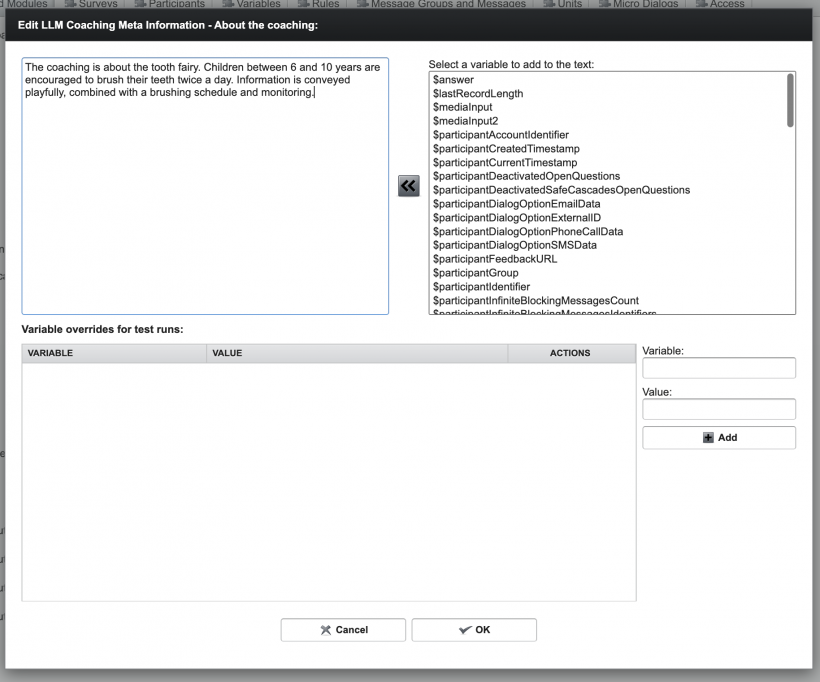
Step 1: LLM Coaching Meta Information – About the Coaching
General information the LLM should know about the coaching.
- Supports variables
Example:
The coaching is about the tooth fairy. Children between 6 and 10 years are encouraged to brush their teeth twice a day. Information is conveyed playfully, combined with a brushing schedule and monitoring.
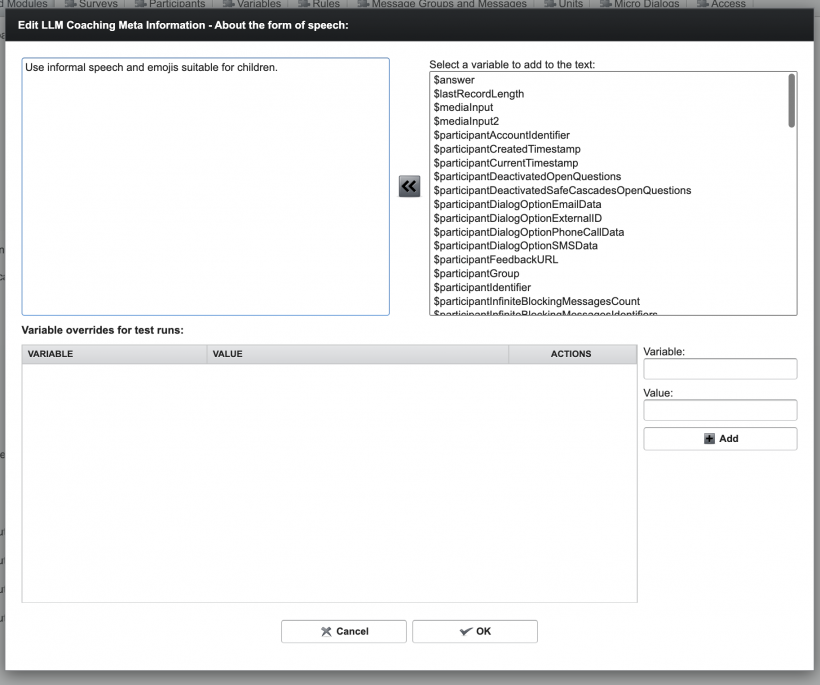
Step 2: LLM Coaching Meta Information – About the Form of Speech
Defines how the LLM should speak.
- Supports variables
Example:
Use informal speech and emojis suitable for children.
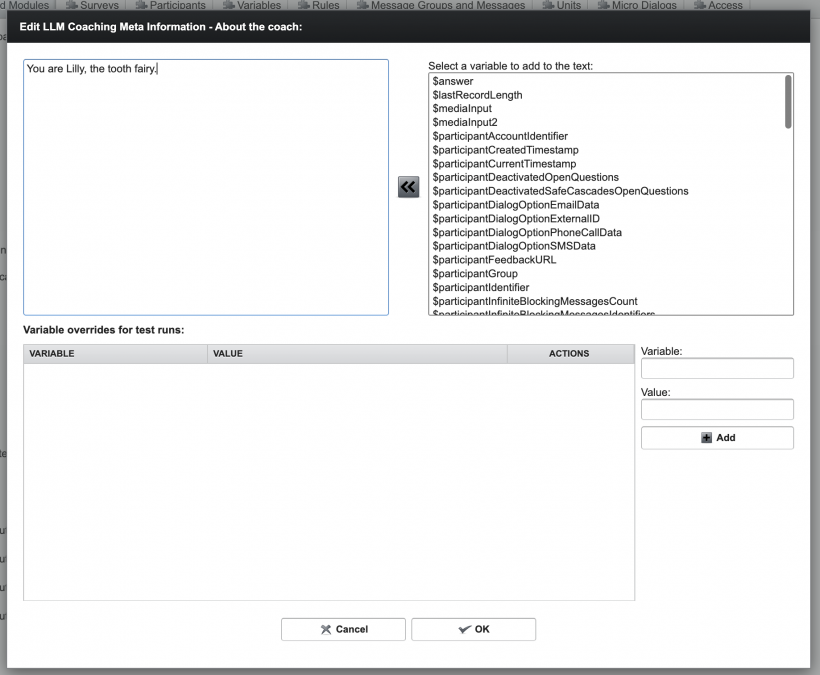
Step 3: LLM Coaching Meta Information – About the Coach
Defines the role or persona of the coach.
- Supports variables
Example:
You are Lilly, the tooth fairy.
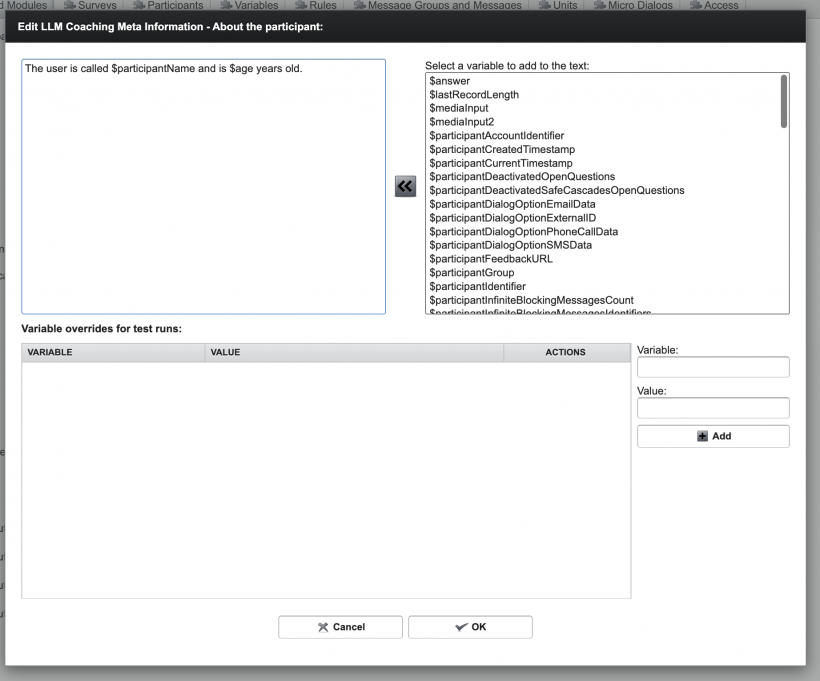
Step 4: LLM Coaching Meta Information – About the Participant
Defines what the LLM should know about the participant.
- Supports variables
Example:
The user is called $participantName and is $age years old.
Note:
Changes to language or LLM-related settings may significantly affect user experience and should be tested carefully before reactivating the coaching.