Infocards
Infocards are concise, informative snippets designed to educate and engage users on specific topics. They can be posted in the chat and stored in a media library for easy access at any time.
Infocards are created using Markdown format. Recommended programs for editing Markdown include MacDown for iOS users and Typora for Windows users.
Meta Title
The meta title defines the subject of your infocard succinctly. The title is displayed at the tile of the infocard. It is mandatory to add a meta title to the infocard.
<meta title="Your Infocard Title Here" />Subtitle
You can also add a subtitle to the info card, which will be displayed in smaller letters just below the meta title on the info card tile. The subtitle is optional.
<meta title="Your Infocard Title Here" subtitle=“Your Subtitle Here” />Button Label
You can add a label to the button, that will be posted in the chat when a new infocard is introduced. The user can open the infocard by clicking on the this button.
<button>Your Button Label Here</button>Markdown Formatting Essentials
Headers
Organize content using headers. # for main headers, and additional #s for sub-levels:
# Main Header
## Subheader
### Sub-subheader
Bullet Points
Use - or * for bullet points, ideal for listing information:
* Item One
* Item Two
* Item Three
Emphasis: Bold and Italics
Use * for bold and for italics to emphasize text:
**Bold Text**
*Italic Text*
Integration of Images with Alt Text
Incorporate images using the  syntax, ensuring all visuals are accompanied by descriptive alt text for blind users.
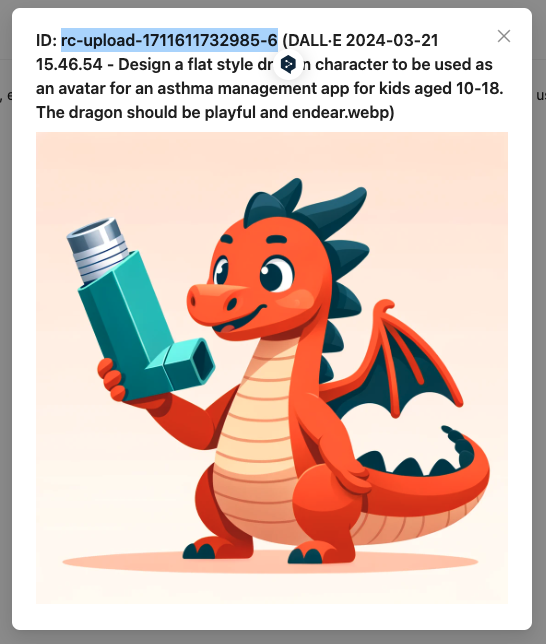
- To integrate images you need to upload them first in the "Media Library" of the CoachStudio Designer.
- After uploading the image, a hash is automatically generated for the image
- Click on the image to see and copy the hash and paste it in the markdown file of the infocard (see image and example below)
Examples
<meta title="Measuring blood sugar levels correctly" />
<button>Measuring blood sugar levels correctly</button>
# Measuring blood sugar levels correctly

It’s not hard to measure your blood sugar levels. However, there are a few things you have to take into account so the values aren’t distorted.
You can use this checklist to help:
1. **Get everything ready:** Meter, test strip, lancing device, lancet, tissue/swab and mobile phone.
2. **Wash your hands:**
Wash your hands with soap and water. Warm water is best because it stimulates the circulation. Then dry your hands thoroughly so the drop of blood isn’t diluted. Don’t use disinfectant or creams, because this can distort the results.
3. **Insert a new lancet:**
Remove the cap from the lancing device and insert a new lancet. Twist off the protective cap of the lancet and replace the cap of the lancing device.
Sometimes you have to tighten the lancing device with a clamping device.
4. **Insert test strip:**
Remove a test strip from the container. Close the container immediately to protect the test strips from moisture. Insert the test strip into the meter; it will switch on automatically.
5. **Prick a finger:**
As you use your thumbs and index fingers a lot during the day, it’s best not to choose them. Ideally your finger should be warm. Prick the side of your finger, this hurts less. If not enough blood comes, stroke the finger lightly in the direction of the fingertip. Don’t squeeze, because this can distort the results.
6. **Apply blood:**
Hold the test strip against the drop of blood so that it is absorbed into the strip. Dab the rest of the blood off your finger.
7. **Note down the result:**
Enter the value shown on the meter into your blood sugar diary in the app.
**Additional information:**
* Store the test strips at room temperature and protect from sun, heat and cold.
* Always keep the container closed to prevent moisture from entering.
* If your blood sugar is to be measured after a meal, take the measurement one to two hours after eating.<meta title="Mindfulness" />
<subtitle="Practices for your daily life" />
<button>Mindfulness</button>
#Mindfulness
Mindfulness is about **being aware of the moment**. Studies show that mindfulness has a positive effect on health and can help you achieve greater inner peace and **serenity**. You can even practice mindfulness in ordinary situations. Choose a moment and **be aware of what you can hear, see, taste**, etc.

##Drinking coffee or tea
* What does your drink taste like?
* How does the cup feel in your hands?
* How does your arm feel when it moves?
##Showering, washing the dishes
* How does the hot water feel on your skin?
* What does the surface you’re touching feel like?
* How does the towel feel on your skin?
##On your way to work, queuing at the checkout
* Look around. What do you see?
* Who is standing next to you?
* What noises do you hear?
Your **mind will wander**. That’s completely normal and nothing to worry about. Just focus again on your tea, the water or the noises. The more you practice, the better you’ll get.Implementation
To incorporate infocards into the coaching dialogue, follow these steps:
- Open the Pathmate Coaching Platform
- Choose the dialogue in which you'd like to insert the infocard
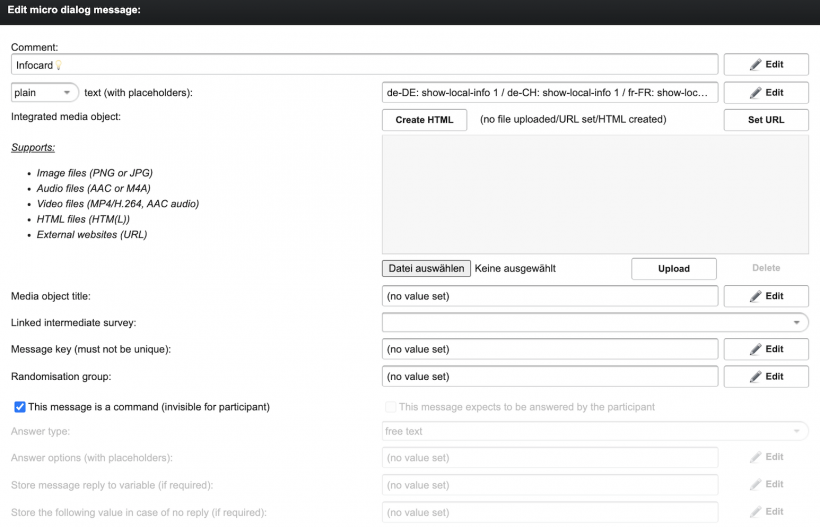
- Click on
+New Messageto create a new message - (optional) Assign a name to the infocard in the field
Comment(not visible for the users) - Add the following in the text field:
show-local-info IDInfocards are sequentially numbered (1 - x), and this numbering serves as their ID. Enter the ID number of the infocard that was previously assigned.
- Copy and paste the text field content into the corresponding fields for other languages
- Check the box labeled
This message is a command - Use the
Move upandMove downbuttons to position the infocard in the desired spot within the dialogue
Example