Gamification
Last updated: September 2026
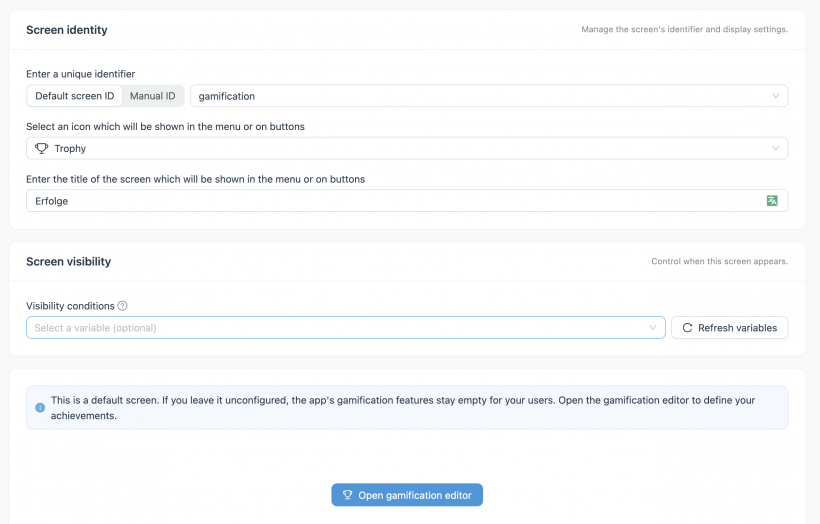
Gamification has its own editor, reachable from App Modules → Gamification, or via the dedicated button on the Gamification Default Screen.
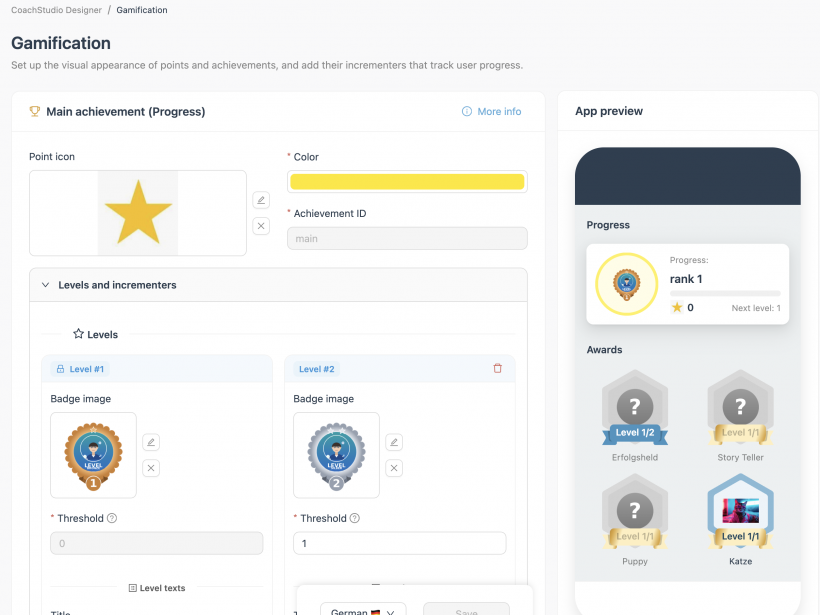
Main achievement (Progress) and secondary achievements (Awards)
The editor distinguishes two kinds of achievements, using this exact UI terminology:
- Main achievement (Progress) — mandatory; every project has exactly one. It uses the reserved ID
main. - Secondary achievements (Awards) — any number of additional, independently configured achievements.
Levels
Each achievement (main or secondary) is made up of one or more levels. Every level has its own:
- Threshold — the incrementer value at which this level unlocks. Levels are ordered by ascending threshold.
- Name
- Headline
- Message
- Quick description
For the main achievement specifically, the first level must have threshold 0 — this is what makes it look "active from the start": it isn't a special case, it's just a level whose threshold happens to be 0.
Badges
- The main achievement gets one badge per level (so progress is visually shown level by level).
- Secondary achievements share a single badge design across all of them.
Surprise achievements
A secondary achievement can be marked "Hide until unlocked" — a surprise achievement stays hidden (not shown to the user at all) until it's actually unlocked, instead of being visible in a locked/greyed-out state beforehand.
Global settings
Gamification-wide settings, applied across all achievements:
- Main color and secondary color
- Point icon (coin)
- Surprise badge icon — the icon shown for hidden/surprise achievements before they're revealed
- Markdown info document — shown to the user via the info icon on the Achievements screen
Triggers
There are five built-in trigger types:
- Task completed
- Tutorial completed
- Coach chosen
- Health tracker source activated
- Questionnaire answered
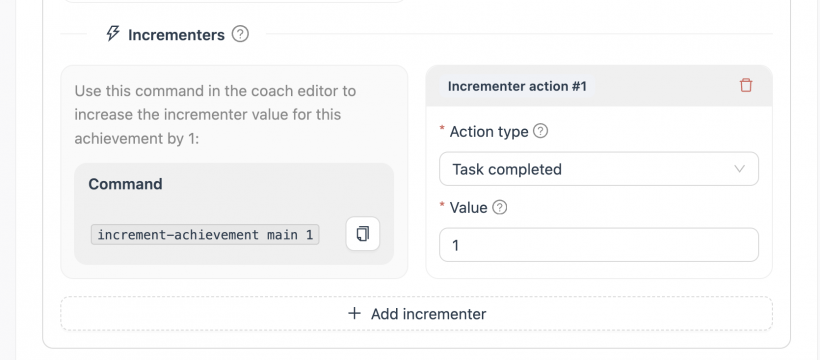
Beyond these, you can also define a free-text custom trigger type, or use a custom-function incrementer for dynamic values (e.g. computed from other data rather than a fixed +1 per event).
The increment command
Progress is advanced with a command pasted into the coach/dialogue editor:
increment-achievement <achievement-ID> 1The achievement must be saved first so it has an ID to reference — you can't generate the command before that.
Worked example
A simplified example, using the Task completed trigger:
- Main achievement (
main) — Level 1 at threshold 0 (so it's unlocked/active from the start). - Secondary achievement A — one level, threshold 1 (unlocks after the first
increment-achievement <A-id> 1triggered by Task completed). - Secondary achievement B — one level, threshold 2 (unlocks after two Task-completed triggers).
To test this end-to-end, the Daily Plan screen needs to be in the app menu, since that's where a task can actually be completed and the increment-achievement command fires. Completing a task there triggers the badge(s) on the Achievements screen — in a shared-trigger setup like this, several achievements can unlock together if their thresholds are both satisfied by the same event.