LLM Hub
Last updated: September 2026
This chapter describes how Large Language Models (LLMs) are configured on coaching level and how the available LLM features — LLM Sessions, LLM OneShot, and LLM Calls — are used within a coaching.
1 Purpose & Concept
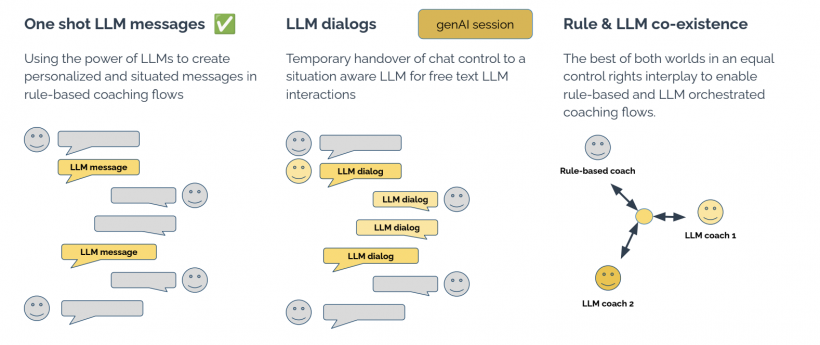
LLMs extend rule-based coachings with generative, context-aware interactions.
They are used in three distinct ways:
- LLM Session: multi-turn, topic-based conversations
- LLM OneShot: single, personalized AI-generated messages
- LLM Calls: direct programmatic invocation of LLMs inside JavaScript snippets
Both LLM Sessions and LLM OneShot rely on a shared Global LLM Configuration (see Basic Settings for more information), defined once per coaching.
2 LLM Hub
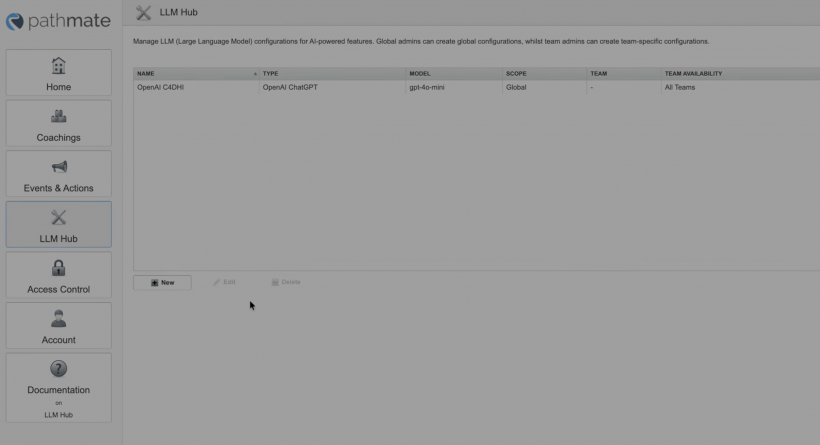
The LLM Hub is the central place within the Pathmate Cloud Platform (also known as MobileCoach) where Large Language Model (LLM) configurations are created, managed, and made available across the system. It introduces a flexible, multi-layered approach that allows both global administrators and team-level users to define and use LLM integrations.
2.1 Overview
The LLM Hub enables you to:
- Configure connections to different LLM providers (e.g., OpenAI, Ollama)
- Control access to LLMs across teams
- Reuse LLM configurations across multiple coachings
- Dynamically switch between models without modifying logic or scripts
2.2 Creating an LLM Configuration
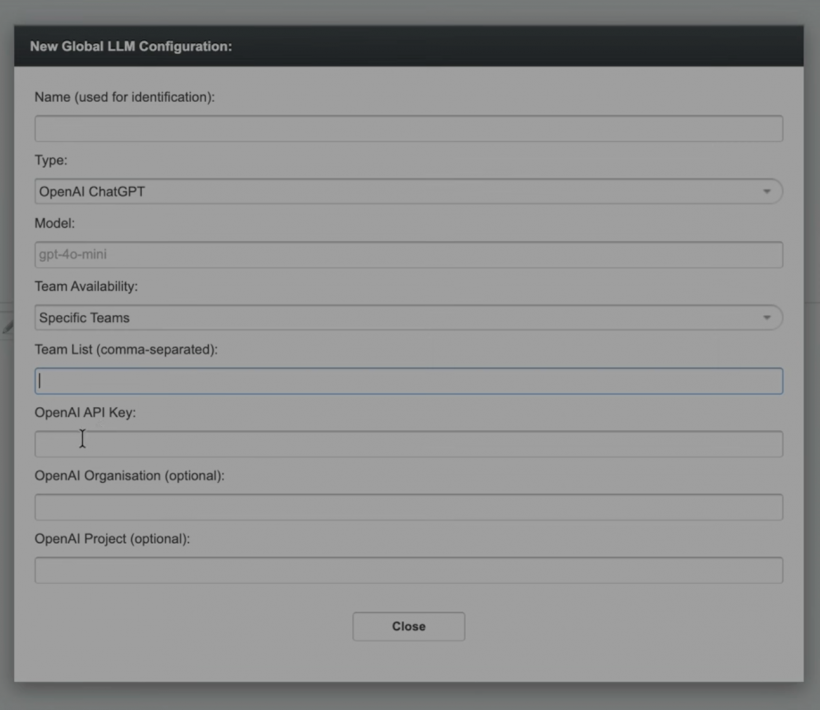
Navigate to LLM Hub in the main menu and click Create New Configuration. Provide the following details:
Basic Settings
| Field | Description |
|---|---|
| Name | A descriptive name for the configuration (e.g., My OpenAI Account, Team Ollama Server) |
| Type | Select the provider: OpenAI or Ollama |
| Model | Specify the model name (e.g., gpt-4, gpt-4-mini, or a custom Ollama model) |
Access Control
| Visibility Scope | Behaviour |
|---|---|
| None | Configuration is inactive (placeholder only) |
| All Teams | Available to all teams on the platform |
| Specific Teams | Restrict access via a comma-separated list of team identifiers |
Credentials
Depending on the provider, supply the required credentials:
- API Key
- Organization Key (if required)
- Project Key (if required)
⚠️ Sensitive credentials are securely stored and not visible to other users.
2.3 Permission Model
The LLM Hub follows a two-layer access model:
| Layer | Created by | Scope | Editable by team? |
|---|---|---|---|
| Global Configurations | Global administrators | All or selected teams | No — credentials are hidden from team members |
| Team-Level Configurations | Team / coaching admins | Own team only | Yes — fully manageable |
Global configurations are intended for shared, centralised LLM usage. Team-level configurations are useful for custom or experimental setups.
2.4 Using LLMs in Coachings
LLM Slots (LLM1–LLM5)

In the Basic Settings of a coaching, you can assign up to five LLM configurations via interchangeable slots:
- LLM1–LLM5 each map to a different LLM configuration
- Slots are referenced throughout the coaching (e.g., in scripts or messages)
- Switching the underlying model requires only changing the slot assignment — no changes to implementation logic
Default behaviour: After a platform update, existing coachings default to LLM1. Assign a configuration to LLM1 in the coaching settings if none exists.
One-Shot Messages
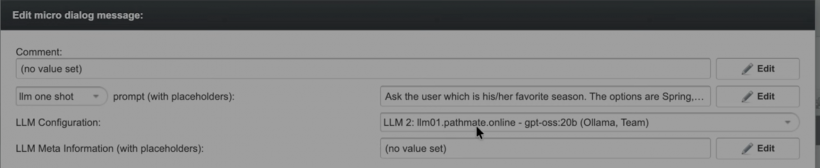
- A LLM Configuration dropdown is available per message
- Select which slot (e.g.,
LLM1) should be used for that message, including test runs - Existing messages default to LLM1
2.5 Ollama Integration Notes
- Ollama models can be hosted locally or on private infrastructure
- Since Ollama does not provide built-in authentication, the platform adds its own authentication layer to ensure only authorised users can access the configured models
2.6 Best Practices
- Use LLM1 as the default fallback slot for all coachings
- Reserve LLM2–LLM5 for experiments, specialised tasks, or performance comparisons
- Use clear, descriptive names for configurations to aid team navigation
- Restrict access to sensitive or cost-intensive LLMs via team scoping
- Define strict variable formats to improve structured data quality
3 Global LLM Settings (Required for Sessions & OneShots)
All LLM OneShots and LLM Sessions use the Global LLM Settings, configured in Basic Settings.
For further information check out Basic Settings.
4 Usage Restrictions & Dependencies
- LLM features can only be used if an LLM is configured for the coaching
- LLM usage incurs additional costs
- Unless defined otherwise, costs must be covered by the customer
To use OpenAI models, you need your own OpenAI API account with billing enabled, an API key and a project. See 5 Setting Up an OpenAI API Account for step-by-step instructions.
Required information:
- Organization ID
- API key (secret)
- Project ID
5 Setting Up an OpenAI API Account
To use AI features in your coachings, CoachStudio connects to a large language model (LLM) through the LLM Hub. If you want to use OpenAI models, you need your own OpenAI API account. This chapter walks you through creating that account, enabling billing, and collecting the credentials you will enter in CoachStudio.
⚠️ ChatGPT is not the same as the OpenAI API. A ChatGPT subscription (Plus, Team, Enterprise) does not include API access. The API is set up and billed separately on the OpenAI Platform, but you can sign in with the same login.
ℹ️ OpenAI updates its interface regularly. Menu names may differ slightly from this guide, but the overall steps stay the same.
5.1 What You Need
- An email address, or a Google, Microsoft or Apple account
- A credit card for prepaid credits
- A mobile phone number, if OpenAI asks for phone verification
5.2 Step 1: Create Your Account
- Go to platform.openai.com/login.
- Click Sign up. If you already have a ChatGPT account, click Log in instead.
- Sign up with your email address and a password, or use Continue with Google / Microsoft / Apple.
- Confirm your email address using the link OpenAI sends you.
- Enter the requested details (name, date of birth) to complete setup.
OpenAI automatically creates an organization and a Default project for your account.
5.3 Step 2: Set Up Your Organization and Project
- Open Settings (gear icon, top right).
- Under Organization → General, rename your organization, for example to your company name.
- Under Projects, create a dedicated project for CoachStudio (e.g.
CoachStudio). This keeps usage, limits and keys separate from other applications.
💡 Best practice: Use separate projects for testing and production coachings. This makes it easier to track costs and revoke access if needed.
💡 If several people in your team need access to the OpenAI account, invite them under Organization → Members rather than sharing one login.
5.4 Step 3: Enable Billing
The OpenAI API uses prepaid credits. Without credit, requests from CoachStudio will fail.
- Go to Settings → Organization → Billing (direct link).
- Click Add payment details and enter your credit card and billing address. For business use, add your company details and VAT ID.
- Add credit to your balance (the current minimum is about USD 5).
- Optional: Enable auto recharge so your balance is topped up automatically when it runs low. This prevents AI features in your coachings from stopping unexpectedly.
💡 Best practice: Under Settings → Limits, set a monthly budget and a notification threshold to keep costs under control.
5.5 Step 4: Create an API Key
- Go to API keys.
- Click Create new secret key.
- Enter a descriptive name (e.g.
coachstudio-production) and select the project you created in Step 2. - Choose the permissions. All is the simplest option; Restricted lets you limit what the key can do.
- Click Create secret key.
- Copy the key immediately and store it in a safe place, such as a password manager.
⚠️ OpenAI shows the key only once. If you lose it, you must create a new one.
⚠️ Never share your API key by email or chat, and never store it in documents or code. Anyone with the key can use your OpenAI credit.
5.6 Step 5: Find Your Organization ID and Project ID (If Required)
Some setups require the Organization ID and Project ID in addition to the API key.
| Credential | Where to find it |
|---|---|
Organization ID (org-...) |
Settings → Organization → General |
Project ID (proj_...) |
Settings → Project → General (select your project first) |
5.7 Step 6: Enter Your Credentials in CoachStudio
With your API key ready, open the LLM Hub in CoachStudio and create a new configuration:
- Select LLM Hub in the main menu and click Create New Configuration.
- Enter a Name, choose OpenAI as the Type, and select a Model.
- Under Credentials, paste your API key. Add the Organization ID and Project ID if required.
- Save the configuration.
Your credentials are stored securely and are not visible to other users. You can now assign this configuration to an LLM slot in your coaching's Basic Settings. See LLM Hub for details.