Adherence Cockpit
Last updated: May 2026
This feature needs custom activation. Please contact us if you are interested: project-support@pathmate.app
The Adherence Dashboard provides live insights into how users interact with and follow a coaching program. It visualizes adherence across all coachings built on the platform and helps identify engagement trends, successful intervention components, and users at risk of dropping out.
The dashboard is based on the adherence definition configured in the CoachStudio Designer. Therefore, the dashboard behavior fully depends on how adherence is defined inside the adherence configuration.
To explain the setup process, this documentation uses a simple Stop-Smoking Test Coaching as an example.
1. Overview
The Adherence Dashboard consists of three main sections:
- Aggregated Adherence
- Adherence per Component
- Individual User Adherence
Each section helps analyze coaching adherence from a different perspective.
2. What Is Adherence?
In the context of the CoachStudio Designer, adherence describes whether users follow the intended coaching program.
The definition of adherence is fully configurable and based on the adherence setup in the CoachStudio Designer.
This means:
- Every coaching can define adherence differently
- Different coaching components can contribute differently to adherence
- Different timeframes can be used
- Different thresholds can be applied
3. Example Coaching Used in This Documentation
For this documentation, we use a simple Stop-Smoking coaching with the following coaching components:
- Log a smoke-free day daily → HPB, IC
- Complete reflection (survey) daily or weekly → IC
- Exercise x minutes per day → HPB, IC
3.1 Adherence Types
There are two different adherence types:
| Type | Description |
|---|---|
| IC | Intervention Components |
| HPB | Health-Promoting Behaviors |
Intervention Component (IC): A measure to reinforce healthy behavior. Exists within the coaching (e.g. Meditation reminders).
A Health-promoting behavior (HPB): A measure that directly benefits a health goal. Can be practiced within or outside the coaching (e.g. Meditation practice).
A coaching component can belong to one or both adherence types.
Example:
- Exercise → HPB and IC
- Reflection → IC only
3.2 Timeframes
Coaching components can be tracked over different timeframes, for example:
- Daily
- Weekly
- Monthly
- Custom periods
Different components may use different periods.
3.3 Targets
Targets define what users are expected to achieve.
Targets can either:
- Be fixed by the system
- Be dynamically defined by the coaching
- Be chosen individually by the user
Example:
- Exercise target = 30 minutes/day
- Exercise target stored in a variable
- User defines their own daily exercise goal
4. Creating an Adherence Definition
To configure adherence in the CoachStudio Designer, three setup steps are required:
- Define Coaching Components
- Define Coaching Plan
- Define Adherence Thresholds
5. Define Coaching Components
The first step is defining all coaching components that should contribute to adherence.
In this example, we start with the Exercise component.
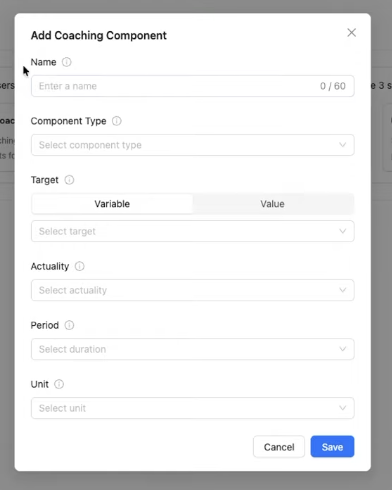
5.1 Creating the Exercise Component
Name
Give the component a recognizable name, e.g. "Exercise"
Component Type
Select the adherence types the component belongs to, e.g. "HPB" or "IC"
Target
Define what the user should achieve.
There are two options:
- Fixed Target, e.g. 30 minutes/day
- Variable Target, the target value is stored in a variable and defined dynamically by the coaching
Advantages:
- Different targets per user
- Targets can change over time
- User-defined goals possible
Actuality
Select the variable containing the actual value achieved by the user, e.g. completed exercise minutes. Make sure the values are measured in the same unit as the target.
Period
Target and actuality always refer to a certain timeframe, in this example daily tracking.
You can select any coaching variable as $periodId.
$periodId is an integer representing the current coaching period.
Example:
| Coaching Day | $periodId |
|---|---|
| Day 1 | 1 |
| Day 4 | 4 |
| Day 10 | 10 |
Important: The period MUST BE incremented by 1 BEFORE the actual measurement (Actuality) is reset.

Units
Units are used for dashboard labels and visualization.
Examples:
- Minutes
- Days
- Weeks
- Counts
Save the first component.
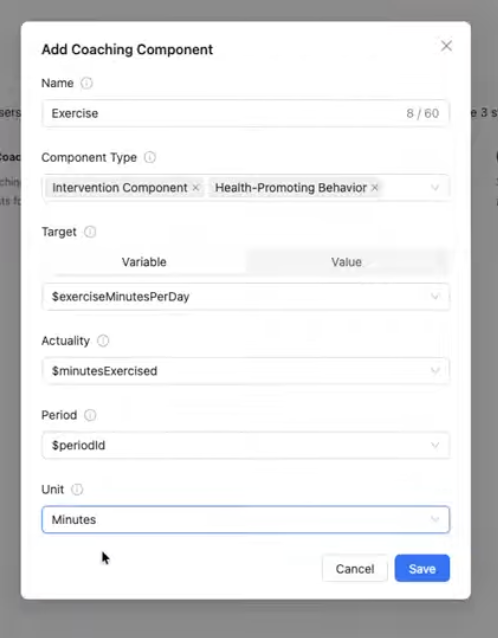
Now the first component is configured successfully.

5.2 Add Remaining Components
Repeat the same process for:
- Log a smoke-free day daily
- Complete reflection
After configuring all components, the setup should look similar to this:
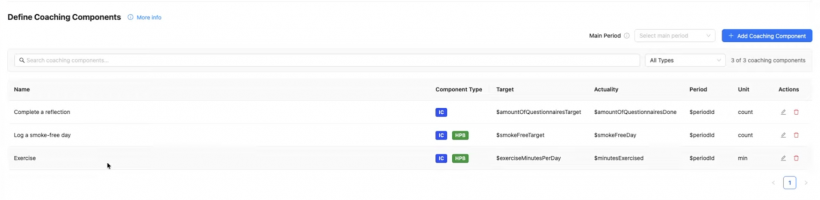
6. Main Period
The only thing missing now is the Main Period.
The Main Period defines the timeframe over which adherence for the coaching plan is calculated.
In this example:
- All components use daily tracking via $periodId
- Therefore, the Main Period should also be daily
6.1 Why the Main Period Matters
Adherence is calculated at the end of a period.
The system performs the following steps:
- Period ends
- Actuality value is divided by target value
- Adherence is calculated
- Period increments by 1
- Actuality resets to zero
6.2 Main Period vs Component Periods
The Main Period should always be:
- Equal to
- Or larger than
the component periods.
Why?
If the Main Period is smaller than a component period, it may happen that:
- No component period ends during the Main Period
- No adherence value can be calculated correctly
Example:
- Main Period = Daily
- Reflection Component = Weekly
In this case, the reflection component would not finish during most daily periods.
Therefore, the Main Period should generally be equal to or larger than the largest component period.
6.3 Flexible Periods
Component periods are highly flexible:
- They do not need to start at midnight
- They can start at arbitrary times
- Their duration can change dynamically
This allows very flexible coaching setups.
7. Variable $adherenceActive
Another important flexibility is the variable:
$adherenceActive
You can select any coaching variable in the CoachStudio Designer as $adherenceActive.
When calculating adherence, the user is only taken into account during periods in which the variable’s condition is met, thus the variable value is not explicitly 'undefined', 'null', 'false' or '0'. If no variable is selected, the condition is always interpreted as being met.
This can be useful for:
- Receptivity phases
- Vulnerability phases
- Paused coachings
- Temporary inactive users
- Programs with active and inactive coaching periods
8. Define the Coaching Plan
After defining components, the next step is creating the coaching plan.

The coaching plan defines:
- Which components belong together
- How components are weighted
- How adherence is calculated
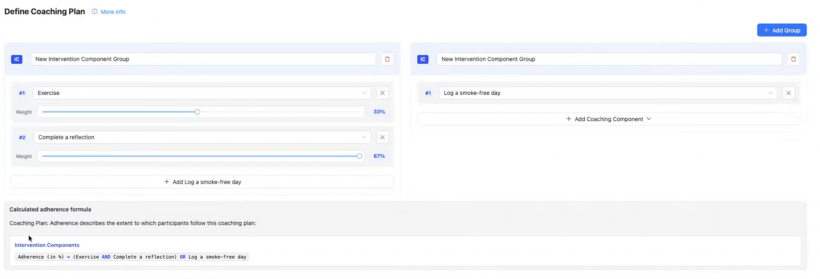
8.1 Creating Groups
Using groups, components can be combined with an AND logic.
Example:
Create a new Intervention Component group containing:
- Exercise
- Reflection
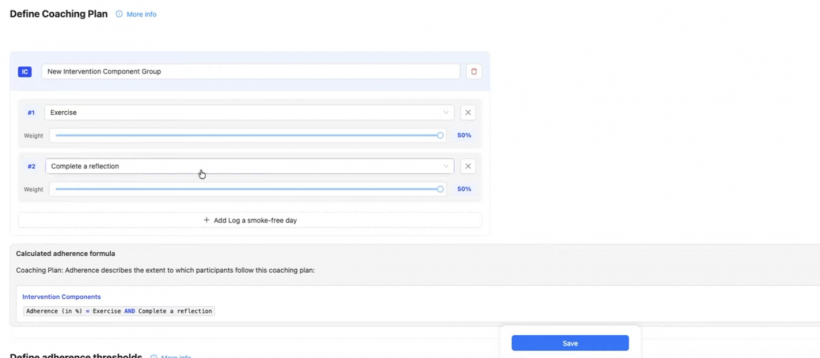
8.2 Component Weights
Each component can have an individual weight.
Weights define the relative importance of components.
Example:
- Reflection = 70%
- Exercise = 30%
This allows certain coaching elements to contribute more strongly to adherence.
8.3 Multiple Groups
We can now add a second group:
- Log a smoke-free day
8.4 Adherence Formula
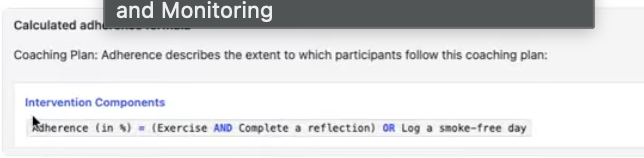
The dashboard immediately visualizes the resulting adherence formula by combining the groups with an OR logic.
In this example:
- Users are adherent if they follow either group
- The system combines the group logic automatically
9. Define Adherence Thresholds
The final setup step is defining adherence thresholds.
Thresholds define:
- When a user is considered adherent
- When a user is considered at risk
Example Thresholds
Adherent User
A user is considered adherent if adherence stays above:
75%
At-Risk User
A user is considered at risk if:
- Adherence drops below 30%
- For 2 consecutive periods
Example:
Threshold: 30% Consecutive periods: 2

10. Refreshing Analytics Data
After finishing the configuration:
- Save the adherence definition
- Refresh adherence definition
- Refresh data if needed
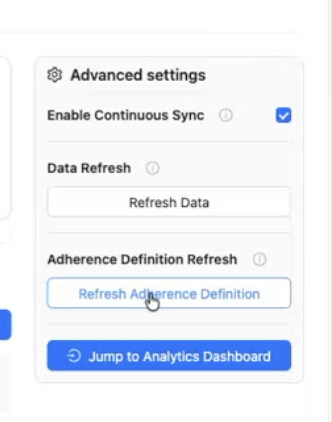
Then navigate to the Analytics Dashboard.
11. Dashboard Overview
After correctly configuring adherence, the dashboard should look similar to this:
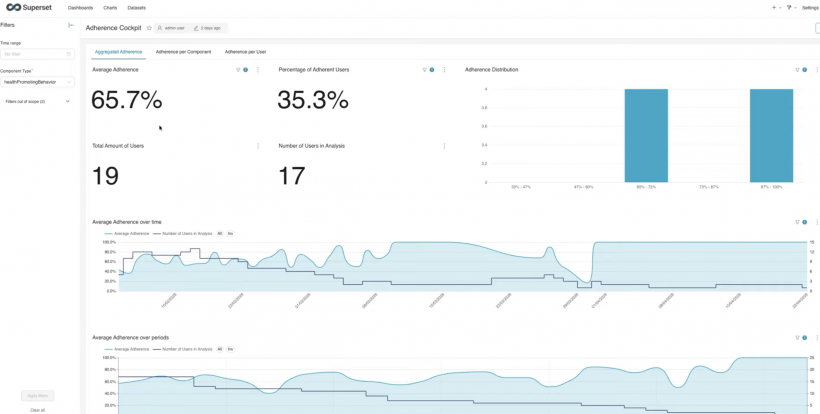
The dashboard contains three main areas:
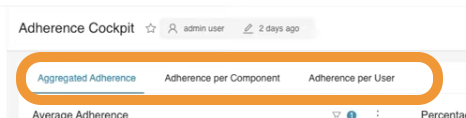
- Aggregated Adherence
- Adherence per Component
- Adherence per User
11.1 Aggregated Adherence
The Aggregated Adherence section provides a high-level overview across all users.
It includes:
- Overall average adherence
- Percentage of adherent users
- Distribution of adherence values
- Adherence over time
- Adherence by coaching period
The dashboard supports multiple adherence perspectives.
You can switch between:
- IC (Intervention Components)
- HPB (Health-Promoting Behaviors)
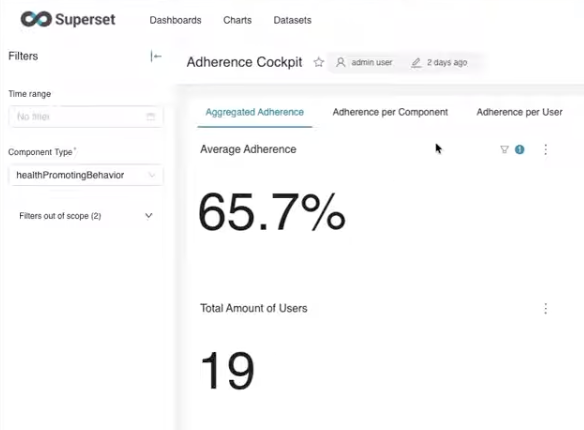
The selected adherence type updates all related charts and KPIs.
11.2 Adherence per Component
The Component Adherence section shows adherence metrics for individual coaching components.
Examples:
- Smoke-free days
- Reflection tasks
- Exercise minutes
Components can be selected individually.
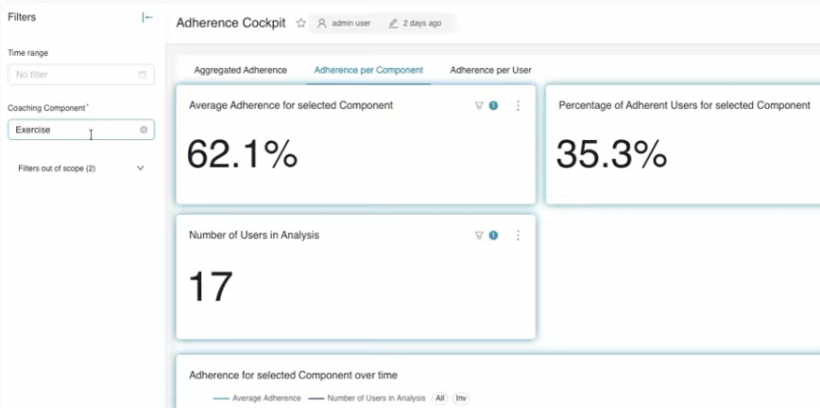
The dashboard updates automatically and displays:
- Average adherence
- Adherence over time
- Adherence by coaching period
for the selected component.
11.3 Individual User Adherence
The Individual User Adherence section helps identify users who may require support.
At-Risk Users
The dashboard highlights users currently at risk.
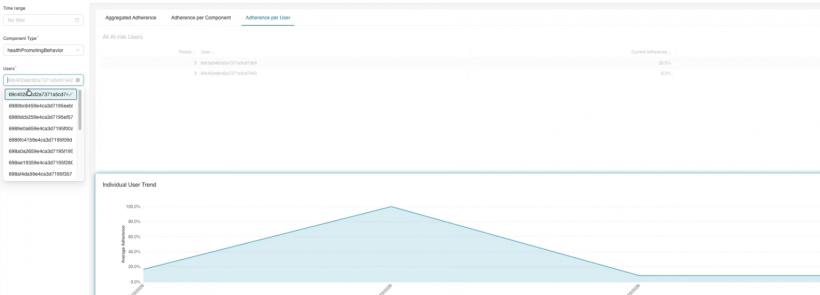
Users are classified as at risk based on the configured adherence thresholds.
Viewing Individual Users
You can also browse all coaching participants individually.
This allows detailed adherence analysis for specific users.
Export aggregated adherence data
Use the three-dot menu next to a specific chart in the dashboard. There you will find the option to export the data or the chart as an image.
12. Synchronization and Refresh Options
The dashboard provides several synchronization mechanisms.
Continuous Sync
When Continuous Sync is enabled:
- Adherence definitions
- Coaching data
- Dashboard metrics
are synchronized automatically every night.
Refresh Adherence Definition
Use this option when:
- Coaching logic changed
- Components changed
- Thresholds changed
- The adherence formula changed
This recalculates the dashboard logic.
Usually takes 1-2 minutes.
Refresh Data
Use Refresh Data when:
- New users were added
- Test users were created
- New coaching data should appear immediately
Please note: Data synchronization may take some time before values become visible.
13. Summary
The Adherence Dashboard provides a flexible and powerful framework for monitoring coaching engagement in real time.
It allows you to:
- Track adherence trends
- Analyze coaching effectiveness
- Monitor intervention components
- Evaluate health-promoting behaviors
- Identify users at risk
- Analyze adherence over time
- Compare adherence across coaching periods
Because the dashboard is fully based on the adherence definition configured in the CoachStudio Designer, it can support a wide variety of coaching structures and intervention strategies.